跳至内容

博客列表

Play with JetBot Autonomous Driving (4)Drive your JetBot
robocarstore/173808120633923478

This article explains how to use jupyter lab in the browser to control your JetBot and how to program your JetBot through python.

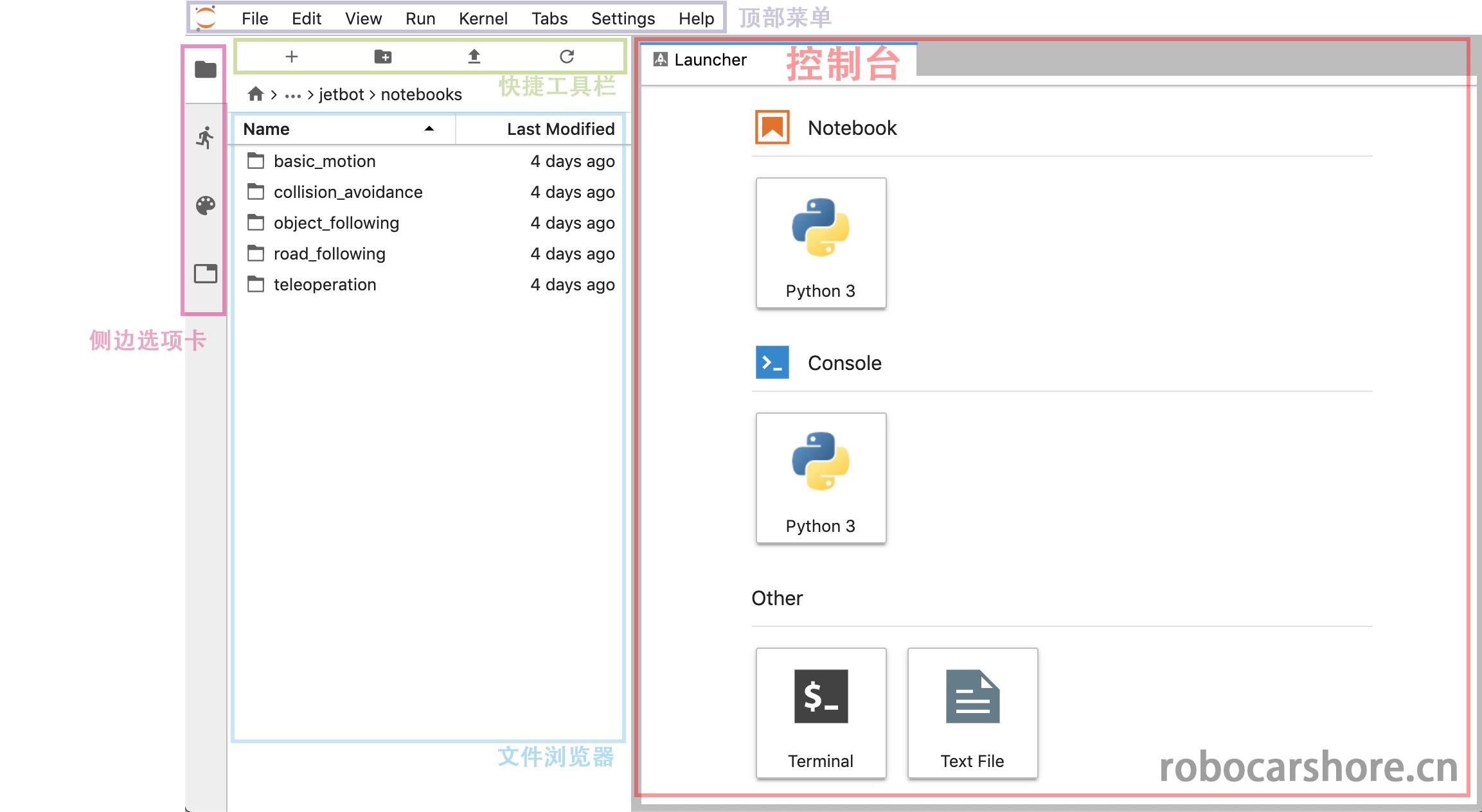
Recognize the interface of Jupyter Lab

We have already used jupyter lab through the browser in the previous article, and we will continue to use this tool. Therefore, it is necessary to understand the interface of jupyter lab, and have an impression of the names of different areas, which will make your subsequent operations more convenient.

robocarstore/173808120633923478

Roughly explain:

  • Top menu:Includes all operations of jupyter lab, such as creating, saving, closing the running kernel, etc.
  • Console:It is a shortcut for quickly creating a notebook and opening a Terminal (terminal, or command line).
  • Quick toolbar:It is a shortcut, from left to right, which represents "create a console", "create a folder", "upload a file", "refresh".
  • Side tab:You can click on "file browser", "running kernel list", "command list", "window list" to open them.

Next, we will explain what the python statements in the notebook mean and what they are used for.

You can view the complete notebook here, with a better style:

https://github.com/ling3ye/jetbot/blob/master/notebooks/basic_motion/basic_motion.ipynb

You can also download this notebook to replace your original basic motion notebook.

Basic Movement

Welcome to the Jetbot programming interface based on jupyter lab.
This type of document is called "jupyter Notebook", which is a document that combines text, code, and graphics. It is more orderly and simple than the method of only having code and comments. If you are not familiar with 'Jupyter', I recommend you to click the "help" drop-down menu in the top menu bar, which has many usage references for Jupyter lab.

And in this notebook, we will introduce the basic programming knowledge of JetBot and how to program your JetBot through python.

Load the Robot class

Before starting to program JetBot, we need to import the "Robot" class. This class allows us to easily control the motors of JetBot! It is included in the "jetbot" package.

If you are a Python beginner, a package is a folder containing code files.
These code files are called modules (models).

To load the Robot class, please highlight the cell below and press ctrl + enter or the play icon above. This operation will execute the code in the cell.

Now that we have loaded the Robot class, we can use the following statement to initialize this instance (instance).

Now that we have created a Robot instance named "Robot", we can use this instance to control our robot (JetBot). Execute the following command to make JetBot rotate counterclockwise at 30% of its maximum speed.

Note: This command will make the robot move. Please ensure there is enough space for the robot to move, to avoid falling and damaging the robot, or simply put it on the ground.

Great, you should now see the JetBot rotating counterclockwise!

If your robot did not turn left, this means that one or both of the motors are not working properly. Try turning off the power and find the motor that is not working properly, then swap the wires of the positive and negative poles.

Reminder: Please ensure that the wires are checked carefully and the wires should be unplugged when the power is turned off.

Now, execute the following stop method to stop the robot.

Sometimes we may want to move the robot for a certain period of time. To do this, we can use the time package in Python. Execute the following code to load time.

This package defines the sleep function, which causes the code to stop for a specified number of seconds before running the next command. Try the following command combination to make the robot turn left for half a second.

Great, you should now see the JetBot left turn for a moment, then stop.

The robot class also has right, forward, and backwards methods. Try creating your own cell, refer to the previous code, and make the robot move forward at 50% speed for one second.

To create a new cell, click on the highlighted bar on the side and press "b" or click the "+" icon in the toolbar above the notebook. Once done, try to enter the code that you think will make the robot move forward at 50% speed for one second, and then execute it to verify if the code you entered is correct.

Control each motor separately

Above we saw how to use left, right etc. commands to control JetBot. But what if we want to set the speed of each motor separately? There are actually two ways to do this.

The first method is to call the set_motors method. For example, to turn left for one second, we can set the left motor speed to 30% and the right motor to 60%, which will achieve a different turning angle, as shown below.

robot.set_motors(0.3, 0.6)

Great! You should now see the JetBot turn left. But actually we can use another way to achieve the same result.

In the Robot class, there are two properties named left_motor and right_motor, which represent the speed values of the left and right motors. These properties are instances of the Motor class, each of which contains a value value. When this value changes, it triggers events, which reassign the motor speed value.

So in this motor class, we attach a function that will update the motor command whenever the value changes. Therefore, to achieve the same result as we did above, we can execute the following.

robot.left_motor.value = 0.3

robot.right_motor.value = 0.6

robot.left_motor.value = 0.0

robot.right_motor.value = 0.0

You should now see the JetBot move in the same way!

Use the traitlets library to connect to HTML controls to operate the motors

Next, we will introduce a very cool feature, which is that we can make some graphical small buttons (controls) on this page using Jupyter Notebooks, and use traitlets to connect these small widgets to control the operation. This way, we can control our car through the buttons on the web page, which will be very convenient and fun.

To illustrate how to write the program, we first create and display two sliders for controlling the motors.

import ipywidgets.widgets as widgets

from IPython.display import display

# create two sliders with range [-1.0, 1.0]

left_slider = widgets.FloatSlider(description='left', min=\-1.0, max=1.0, step=0.01, orientation='vertical')

right_slider = widgets.FloatSlider(description='right', min=\-1.0, max=1.0, step=0.01, orientation='vertical')

# create a horizontal box container to place the sliders next to eachother

slider_container = widgets.HBox([left_slider, right_slider])

# display the container in this cell's output

display(slider_container)

You should now see two vertical sliders displayed above.

Tip: In Jupyter Lab, you can actually pop out the cell to other windows, such as these two sliders. Although they are not in the same window, they are still connected to this notebook. The specific operation is to move the mouse to the cell (for example: slider) and right-click, select "Create new view for output" (Create new view for output), and then drag the window to the place you are satisfied with.

Try clicking and dragging the sliders up and down, you will see the value change. Note that the motors of the JetBot are not responding when we move the sliders, because we have not connected them to the motors yet! We will achieve this by using the link function in the traitlets package below.

left_link = traitlets.link((left_slider, 'value'), (robot.left_motor, 'value'))

right_link = traitlets.link((right_slider, 'value'), (robot.right_motor, 'value'))

Now try dragging the sliders (you need to move them slowly, otherwise your JetBot will suddenly run out of bounds and cause damage), you should see the corresponding motors turning!

We created the link function above actually creates a two-way link! This means that if we set the motor value somewhere else, the slider will update accordingly! Try executing the following code block:

Executing the above code should see the slider change, responding to the motor speed value. If we want to disconnect this connection, we can call the unlink method to disconnect each connection one by one.

But if we don't want a two-way connection, for example, we just want to use the slider to display the motor speed value, but not to control it, then to achieve this function, we can use the dlink function, the left is the source, the right is the target (the data comes from the motor, and then it is displayed on the target).

left_link = traitlets.dlink((robot.left_motor, 'value'), (left_slider, 'value'))

right_link = traitlets.dlink((robot.right_motor, 'value'), (right_slider, 'value'))

Now you can move the sliders up and down, you should see that the robot's motors have no reaction. But when we set the motor speed value and execute it, the slider will respond to the corresponding numerical update.

Add functions to events

Another way to use traitlets is to attach functions to events (for example forward). As soon as the object changes, the function will be called, and some information about the change will be passed, such as the old value and the new value.

Let's create some buttons to control the robot displayed in the notebook.

button_layout = widgets.Layout(width='100px', height='80px', align_self='center')

stop_button = widgets.Button(description='stop', button_style='danger', layout=button_layout)

forward_button = widgets.Button(description='forward',

backward_button = widgets.Button(description='backward', layout=button_layout)

left_button = widgets.Button(description='left', layout=button_layout)

right_button = widgets.Button(description='right', layout=button_layout)

middle_box = widgets.HBox([left_button, stop_button, right_button],

layout=widgets.Layout(align_self='center'))

controls_box = widgets.VBox([forward_button, middle_box, backward_button])

You should now see a set of robot control buttons displayed above, but clicking the buttons will not do anything. To control, we need to create some functions attached to the on_click event of the buttons.

def step_forward(change):

def step_backward(change):

Now that we have defined those functions, let's attach them to the on_click event of each button.

# link buttons to actions

stop_button.on_click(stop)

forward_button.on_click(step_forward) backward_button.on_click(step_backward) left_button.on_click(step_left)

right_button.on_click(step_right)

Now, when you click each button, you should see the JetBot move accordingly.

Heartbeat switch

Here we show how to use the 'heartbeat' package to stop the movement of the JetBot. This is a simple way to detect if the JetBot is still connected to the browser. You can adjust the heartbeat period (in seconds) using the slider shown below. If the heartbeat cannot communicate back and forth between the browser, the heartbeat's status property will be set to dead. Once the connection is restored, the status property will be set to alive.

from jetbot import Heartbeat

# this function will be called when heartbeat 'alive' status changes

def handle_heartbeat_status(change):

if change['new'] == Heartbeat.Status.dead:

heartbeat.observe(handle_heartbeat_status, names='status')

period_slider = widgets.FloatSlider(description='period', min=0.001, max=0.5, step=0.01, value=0.5)

traitlets.dlink((period_slider, 'value'), (heartbeat, 'period'))

display(period_slider, heartbeat.pulseout)

Try executing the following code to start the motor, then lower the slider to see what happens. You can also try turning off your robot or computer.

Summary

This is a simple notebook example, I hope it will help you build confidence in programming your JetBot.

给大家介绍一下!Donkey Car

Donkey Car

Donkey Car,是一款开源的小型DIY自驾平台,这可能是你最佳的AI入门学习平台。Donkey是用Python写的高级自动驾驶库,它的特点是让你可以快速学习机器学习,快速实验,综合应用机器视觉,机器学习工具(例如:tornado, keras, tensorflow, opencv, ….)

什么是Donkey Car?

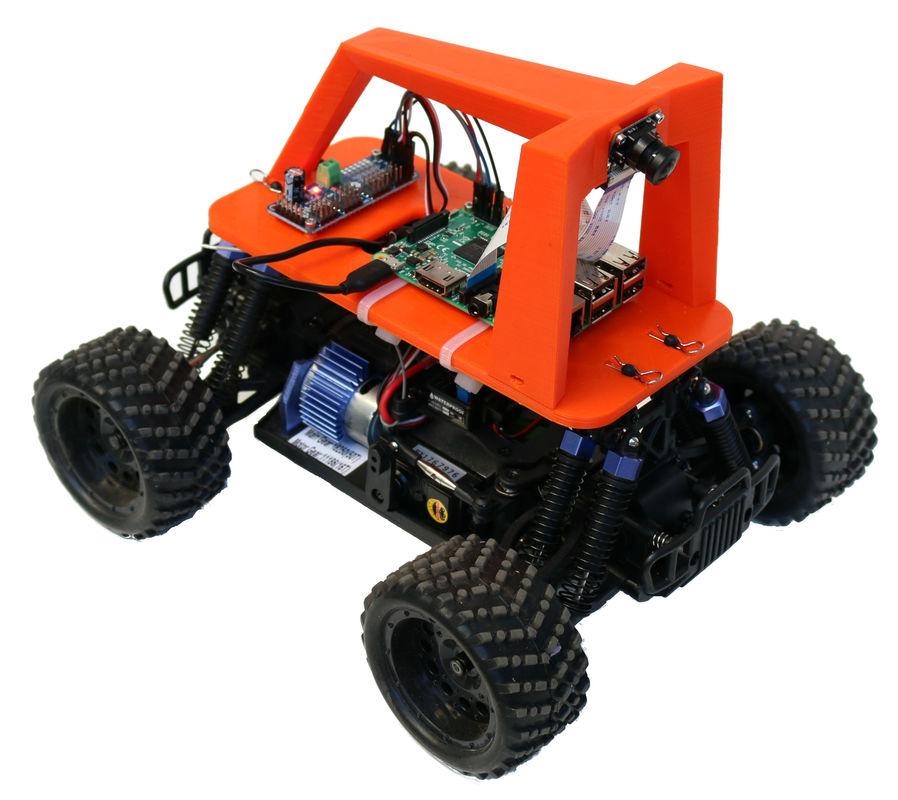
Donkey Car是一个基于Python的开源项目,旨在帮助用户构建和训练自动驾驶汽车。它的设计初衷是让用户能够在家中或实验室中轻松地进行自动驾驶技术的实验。Donkey Car的硬件部分通常由一个小型遥控车、Raspberry Pi、摄像头和电池组成。软件部分则是一个强大的Python库,支持多种机器学习框架。

为什么选择Donkey Car?

  1. 易于上手:Donkey Car的设计非常直观,即使是没有编程经验的人也可以快速上手。它提供了详细的文档和教程,帮助用户一步步完成从硬件组装到软件配置的全过程。

  2. 社区支持:作为一个开源项目,Donkey Car拥有一个活跃的社区。无论你遇到什么问题,都可以在社区中找到答案或寻求帮助。

  3. 灵活性:Donkey Car支持多种机器学习框架,如TensorFlow和Keras,用户可以根据自己的需求选择合适的工具进行实验。

  4. 成本低廉:相比于其他自动驾驶平台,Donkey Car的成本相对较低,非常适合个人爱好者和教育机构使用。

如何开始?

要开始使用Donkey Car,你需要准备以下材料:

  • 一辆小型遥控车
  • Raspberry Pi
  • 摄像头
  • 电池
  • 3D打印的车架(可选)

接下来,你可以按照官方文档的指导进行硬件组装和软件安装。Donkey Car的官方GitHub页面提供了详细的安装步骤和示例代码,帮助你快速搭建自己的自动驾驶汽车。

结论

Donkey Car是一个非常适合AI初学者的项目。通过这个平台,你可以学习到自动驾驶的基本原理,掌握机器学习和计算机视觉的基础知识。无论你是想要进入AI领域,还是只是对自动驾驶技术感兴趣,Donkey Car都将是一个理想的起点。

希望这篇文章能帮助你更好地了解Donkey Car,并激发你对自动驾驶技术的兴趣。快来加入Donkey Car社区,开始你的AI学习之旅吧!

Donkey Car详解(1) – 组装

Donkey Car

概述

Donkey Car是2016年10月由美国人Adam Conway(Twitter)主导的一个人工智能自动驾驶模型车项目,由于近几年来人工智能技术和自动驾驶技术逐渐兴起,这个自动驾驶项目也受到越来越多爱好者关注和加入,逐渐形成了DonkeyCar社群。

本教程目标是帮助DonkeyCar初学者快速上手,如果有问题或建议,欢迎拍砖。

选择车架

最初的Donkey Car是通过改装“Exceed”牌1/16四驱玩具车而成,官方文档推荐一下四个型号:

以上四款小车的电子驱动模块都是一样的,它们但区别在于轮胎和安装顶盖的方式。需要提醒的是Desert Monster,Short Course Truck和Blaze需要增加一个适配器来固定Donkey Car主板和把手,可以在玩具店购买或者自己打印。因为这些小车都是标准配置,基本上是即插即用的。这些小车都有有刷电机版本和无刷电机版本,作者说使用有刷电机版的车架更容易训练,因为有刷电机更适合在粗糙的路面驾驶,也更便宜。

后来玩具们开始改装1/10的玩具车,1/10的车子变得更大,升级成Doneky Car专业版。当然专业版的Donkey Car性能更好,价格也更贵,以下是支持的型号:

  • HobbyKing Trooper (非专业版) 链接
  • HobbyKing Mission-D 链接
  • Tamaya TT01或者它的山寨版,这款容易购买,但需要散件安装,有一定难度。

因为完专业版的DonkeyCar的人比普通版的少,因为专业版存在文档不足的问题,如果你要开始完Donkey Car Pro,你应该具备一定的动手能力和更多的耐性。

所需零件

根据不同主板的支持,Donkey Car有两个版本,一款是使用树莓派(Raspberry Pi)的Donkey Car,另一款是使用Jetson Nano的Donkey Car。两个版本除了主板不同,所需的配件和软件的安装也是不一样的。

选项1 – 你可以通过Donkey Car官方渠道购买

如果你在美国,可以到原作者的Donkey store商店购买。

如果你在亚洲,你可以选择香港的Robocar Store,或者中国大陆的Robocar Store China购买。

官方套件或整车包括

零件大约成本
车架(来自上面的玩具车)大约¥600
电池及充电器大约¥120
树莓派 3b+大约¥300
128G SD卡大约¥120
其他配件大约¥600 – ¥875

选项2 – 你可以通过零件清单购买

如果你需要自己购买零部件,你可以参考作者的链接。值得提醒的是,如果你要自己组装,是需要通过3D打印机打印Donkey Car的零部件。如果你没有3D打印机,可以到红菜3D选购一台。

具体要准备的打印零部件,可以参考官方文档,

Jetson Nano升级

如果你想你小车跑得更快,你可以选择具有GPU的Jetson Nano作为主板,除了需要换主板意外,你还需要另外准备一个Jetson Nano的主板适配器还有Jetson Nano的网卡和Jetson Nano适用的摄像头(可参考这篇文章)

JetsonNano适配器

Jetson Nano 适配器

JesonNano扩展板

注意Jetson Nano的pin口布局和树莓派相反,使用其他扩展板时要注意。

电池

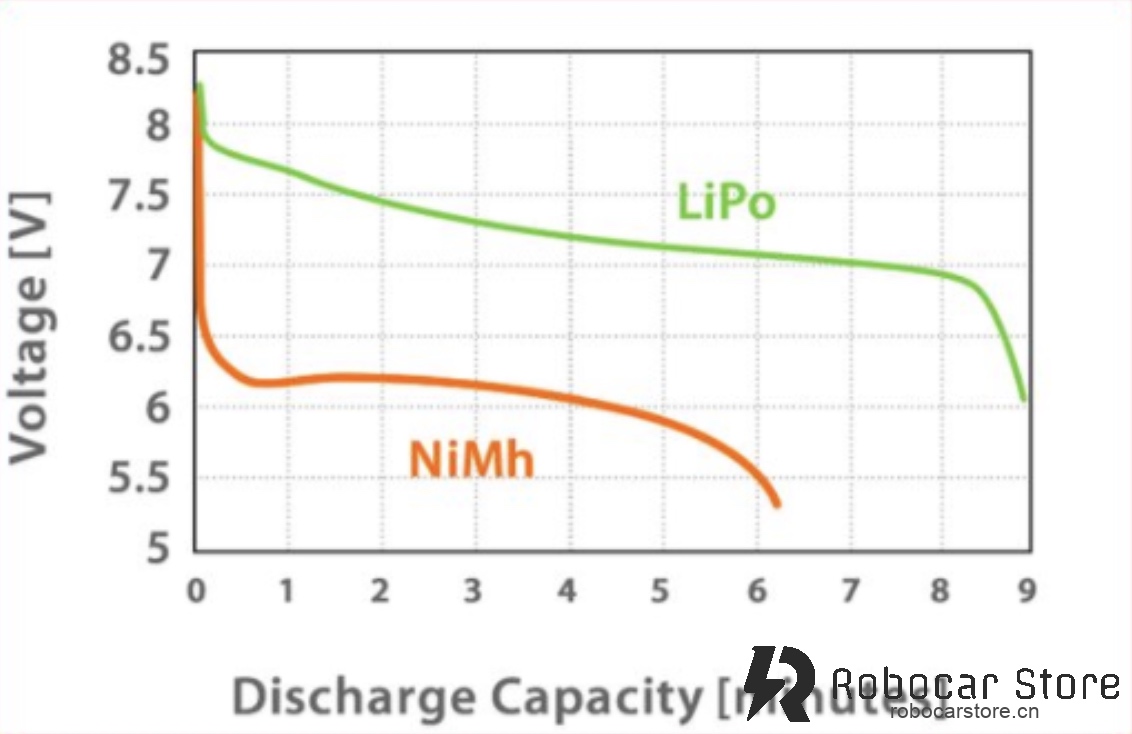
我们强烈建议使用聚合物锂电池,因为聚合物锂电池的能量密度更高,而且电压下降曲线更平滑,因而电压更稳定。

Battery

硬件

如果你从官方商店购买Donkey Car,你可以跳过前两步。

第一步 打印零部件

如果你没有3D打印机,可以在我们的商店购买打印好的零部件,或者寻找第三方打印。如果使用 PLA打印,层高设置可以选择2mm,填充率30%,打印一套零部件,估计需要2天时间左右,这是模型的下载链接

第二步 清理零部件

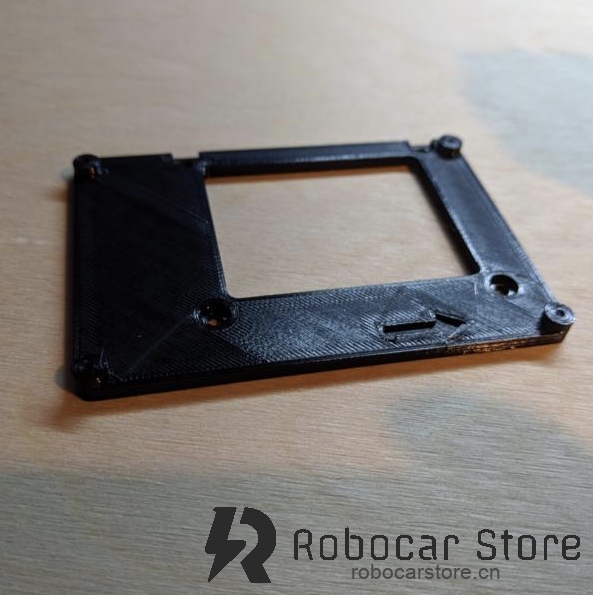
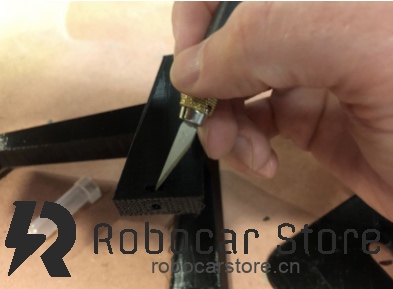
所有的3D打印件都需要做一点清理,包括重新钻孔,清理拉丝等。

robocarstore/17380757722502808

robocarstore/17380757862515729

第三步 安装底板和手提支架

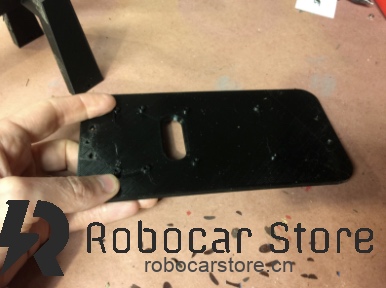
安装步骤是相当简单的,你只需要使用M3螺丝把底板和手提把手连接起来。你要确保螺丝上紧了,因为你会使用手提支架提起小车。

第四步 连接舵机控制器

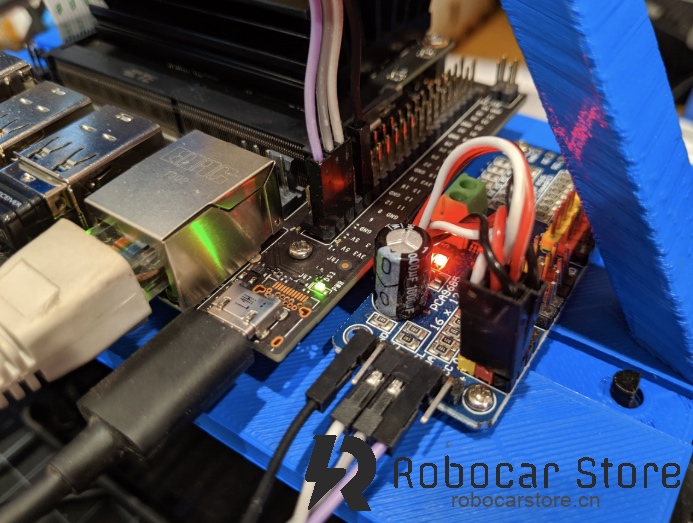
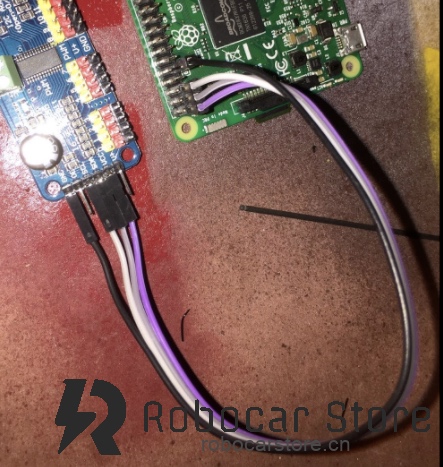
你可以把电路板安装上底板上再做连线,连线入下图所示。

robocarstore/173807580225062010

robocarstore/173807581725157711

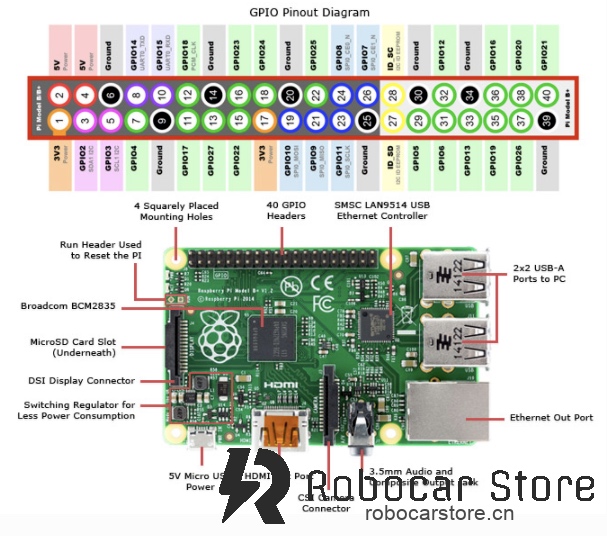
这是树莓派的布局图,你需要连接3.3v、两个I2C pin (SDA和SCL) 和 Ground(接地)

第五步 将树莓派安装到底板上

在这个时候,你可以把已经烧录好的SD卡插入树莓派卡槽。然后把树莓派和舵机连通过螺丝安装到底板上。这时需要使用M2.6的螺丝。

(加图片)

第六步 安装摄像头

先把摄像头的数据线连接好,然后安装到手提支架到前方,如下图:

注意树莓派到安装方向,如果摄像头前有薄膜保护,记得要把保护膜撕掉以免影响训练效果。

第七步 安装到车架上

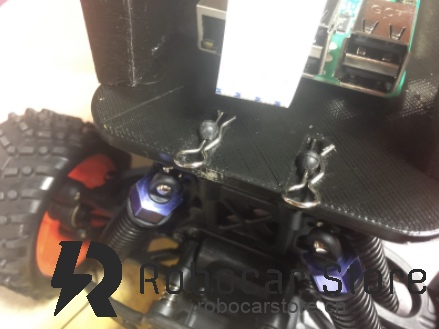
使用R型扣把底板固定在车架上,然后连接上电源线。

robocarstore/173807583625096212

恭喜你,你的小车安装完成!

要驱动你的小车,你就需要继续参考下一篇文章软件安装部分

给大家介绍一下!Donkey Car

Donkey Car

Donkey Car,是一款开源的小型DIY自驾平台,这可能是你最佳的AI入门学习平台。Donkey是用Python写的高级自动驾驶库,它的特点是让你可以快速学习机器学习,快速实验,综合应用机器视觉,机器学习工具(例如:tornado, keras, tensorflow, opencv, ….)

什么是Donkey Car?

Donkey Car是一个基于Python的开源项目,旨在帮助用户构建和训练自动驾驶汽车。它的设计初衷是让用户能够在家中或实验室中轻松地进行自动驾驶技术的实验。Donkey Car的硬件部分通常由一个小型遥控车、Raspberry Pi、摄像头和电池组成。软件部分则是一个强大的Python库,支持多种机器学习框架。

为什么选择Donkey Car?

  1. 易于上手:Donkey Car的设计非常直观,即使是没有编程经验的人也可以快速上手。它提供了详细的文档和教程,帮助用户一步步完成从硬件组装到软件配置的全过程。

  2. 社区支持:作为一个开源项目,Donkey Car拥有一个活跃的社区。无论你遇到什么问题,都可以在社区中找到答案或寻求帮助。

  3. 灵活性:Donkey Car支持多种机器学习框架,如TensorFlow和Keras,用户可以根据自己的需求选择合适的工具进行实验。

  4. 成本低廉:相比于其他自动驾驶平台,Donkey Car的成本相对较低,非常适合个人爱好者和教育机构使用。

如何开始?

要开始使用Donkey Car,你需要准备以下材料:

  • 一辆小型遥控车
  • Raspberry Pi
  • 摄像头
  • 电池
  • 3D打印的车架(可选)

接下来,你可以按照官方文档的指导进行硬件组装和软件安装。Donkey Car的官方GitHub页面提供了详细的安装步骤和示例代码,帮助你快速搭建自己的自动驾驶汽车。

结论

Donkey Car是一个非常适合AI初学者的项目。通过这个平台,你可以学习到自动驾驶的基本原理,掌握机器学习和计算机视觉的基础知识。无论你是想要进入AI领域,还是只是对自动驾驶技术感兴趣,Donkey Car都将是一个理想的起点。

希望这篇文章能帮助你更好地了解Donkey Car,并激发你对自动驾驶技术的兴趣。快来加入Donkey Car社区,开始你的AI学习之旅吧!

Donkey Car详解(1) – 组装

Donkey Car

概述

Donkey Car是2016年10月由美国人Adam Conway(Twitter)主导的一个人工智能自动驾驶模型车项目,由于近几年来人工智能技术和自动驾驶技术逐渐兴起,这个自动驾驶项目也受到越来越多爱好者关注和加入,逐渐形成了DonkeyCar社群。

本教程目标是帮助DonkeyCar初学者快速上手,如果有问题或建议,欢迎拍砖。

选择车架

最初的Donkey Car是通过改装“Exceed”牌1/16四驱玩具车而成,官方文档推荐一下四个型号:

以上四款小车的电子驱动模块都是一样的,它们但区别在于轮胎和安装顶盖的方式。需要提醒的是Desert Monster,Short Course Truck和Blaze需要增加一个适配器来固定Donkey Car主板和把手,可以在玩具店购买或者自己打印。因为这些小车都是标准配置,基本上是即插即用的。这些小车都有有刷电机版本和无刷电机版本,作者说使用有刷电机版的车架更容易训练,因为有刷电机更适合在粗糙的路面驾驶,也更便宜。

后来玩具们开始改装1/10的玩具车,1/10的车子变得更大,升级成Doneky Car专业版。当然专业版的Donkey Car性能更好,价格也更贵,以下是支持的型号:

  • HobbyKing Trooper (非专业版) 链接
  • HobbyKing Mission-D 链接
  • Tamaya TT01或者它的山寨版,这款容易购买,但需要散件安装,有一定难度。

因为完专业版的DonkeyCar的人比普通版的少,因为专业版存在文档不足的问题,如果你要开始完Donkey Car Pro,你应该具备一定的动手能力和更多的耐性。

所需零件

根据不同主板的支持,Donkey Car有两个版本,一款是使用树莓派(Raspberry Pi)的Donkey Car,另一款是使用Jetson Nano的Donkey Car。两个版本除了主板不同,所需的配件和软件的安装也是不一样的。

选项1 – 你可以通过Donkey Car官方渠道购买

如果你在美国,可以到原作者的Donkey store商店购买。

如果你在亚洲,你可以选择香港的Robocar Store,或者中国大陆的Robocar Store China购买。

官方套件或整车包括

零件大约成本
车架(来自上面的玩具车)大约¥600
电池及充电器大约¥120
树莓派 3b+大约¥300
128G SD卡大约¥120
其他配件大约¥600 – ¥875

选项2 – 你可以通过零件清单购买

如果你需要自己购买零部件,你可以参考作者的链接。值得提醒的是,如果你要自己组装,是需要通过3D打印机打印Donkey Car的零部件。如果你没有3D打印机,可以到红菜3D选购一台。

具体要准备的打印零部件,可以参考官方文档,

Jetson Nano升级

如果你想你小车跑得更快,你可以选择具有GPU的Jetson Nano作为主板,除了需要换主板意外,你还需要另外准备一个Jetson Nano的主板适配器还有Jetson Nano的网卡和Jetson Nano适用的摄像头(可参考这篇文章)

JetsonNano适配器

Jetson Nano 适配器

JesonNano扩展板

注意Jetson Nano的pin口布局和树莓派相反,使用其他扩展板时要注意。

电池

我们强烈建议使用聚合物锂电池,因为聚合物锂电池的能量密度更高,而且电压下降曲线更平滑,因而电压更稳定。

Battery

硬件

如果你从官方商店购买Donkey Car,你可以跳过前两步。

第一步 打印零部件

如果你没有3D打印机,可以在我们的商店购买打印好的零部件,或者寻找第三方打印。如果使用 PLA打印,层高设置可以选择2mm,填充率30%,打印一套零部件,估计需要2天时间左右,这是模型的下载链接

第二步 清理零部件

所有的3D打印件都需要做一点清理,包括重新钻孔,清理拉丝等。

robocarstore/17380757722502808

robocarstore/17380757862515729

第三步 安装底板和手提支架

安装步骤是相当简单的,你只需要使用M3螺丝把底板和手提把手连接起来。你要确保螺丝上紧了,因为你会使用手提支架提起小车。

第四步 连接舵机控制器

你可以把电路板安装上底板上再做连线,连线入下图所示。

robocarstore/173807580225062010

robocarstore/173807581725157711

这是树莓派的布局图,你需要连接3.3v、两个I2C pin (SDA和SCL) 和 Ground(接地)

第五步 将树莓派安装到底板上

在这个时候,你可以把已经烧录好的SD卡插入树莓派卡槽。然后把树莓派和舵机连通过螺丝安装到底板上。这时需要使用M2.6的螺丝。

(加图片)

第六步 安装摄像头

先把摄像头的数据线连接好,然后安装到手提支架到前方,如下图:

注意树莓派到安装方向,如果摄像头前有薄膜保护,记得要把保护膜撕掉以免影响训练效果。

第七步 安装到车架上

使用R型扣把底板固定在车架上,然后连接上电源线。

robocarstore/173807583625096212

恭喜你,你的小车安装完成!

要驱动你的小车,你就需要继续参考下一篇文章软件安装部分

给大家介绍一下!Donkey Car

Donkey Car

Donkey Car,是一款开源的小型DIY自驾平台,这可能是你最佳的AI入门学习平台。Donkey是用Python写的高级自动驾驶库,它的特点是让你可以快速学习机器学习,快速实验,综合应用机器视觉,机器学习工具(例如:tornado, keras, tensorflow, opencv, ….)

什么是Donkey Car?

Donkey Car是一个基于Python的开源项目,旨在帮助用户构建和训练自动驾驶汽车。它的设计初衷是让用户能够在家中或实验室中轻松地进行自动驾驶技术的实验。Donkey Car的硬件部分通常由一个小型遥控车、Raspberry Pi、摄像头和电池组成。软件部分则是一个强大的Python库,支持多种机器学习框架。

为什么选择Donkey Car?

  1. 易于上手:Donkey Car的设计非常直观,即使是没有编程经验的人也可以快速上手。它提供了详细的文档和教程,帮助用户一步步完成从硬件组装到软件配置的全过程。

  2. 社区支持:作为一个开源项目,Donkey Car拥有一个活跃的社区。无论你遇到什么问题,都可以在社区中找到答案或寻求帮助。

  3. 灵活性:Donkey Car支持多种机器学习框架,如TensorFlow和Keras,用户可以根据自己的需求选择合适的工具进行实验。

  4. 成本低廉:相比于其他自动驾驶平台,Donkey Car的成本相对较低,非常适合个人爱好者和教育机构使用。

如何开始?

要开始使用Donkey Car,你需要准备以下材料:

  • 一辆小型遥控车
  • Raspberry Pi
  • 摄像头
  • 电池
  • 3D打印的车架(可选)

接下来,你可以按照官方文档的指导进行硬件组装和软件安装。Donkey Car的官方GitHub页面提供了详细的安装步骤和示例代码,帮助你快速搭建自己的自动驾驶汽车。

结论

Donkey Car是一个非常适合AI初学者的项目。通过这个平台,你可以学习到自动驾驶的基本原理,掌握机器学习和计算机视觉的基础知识。无论你是想要进入AI领域,还是只是对自动驾驶技术感兴趣,Donkey Car都将是一个理想的起点。

希望这篇文章能帮助你更好地了解Donkey Car,并激发你对自动驾驶技术的兴趣。快来加入Donkey Car社区,开始你的AI学习之旅吧!

Donkey Car详解(1) – 组装

Donkey Car

概述

Donkey Car是2016年10月由美国人Adam Conway(Twitter)主导的一个人工智能自动驾驶模型车项目,由于近几年来人工智能技术和自动驾驶技术逐渐兴起,这个自动驾驶项目也受到越来越多爱好者关注和加入,逐渐形成了DonkeyCar社群。

本教程目标是帮助DonkeyCar初学者快速上手,如果有问题或建议,欢迎拍砖。

选择车架

最初的Donkey Car是通过改装“Exceed”牌1/16四驱玩具车而成,官方文档推荐一下四个型号:

以上四款小车的电子驱动模块都是一样的,它们但区别在于轮胎和安装顶盖的方式。需要提醒的是Desert Monster,Short Course Truck和Blaze需要增加一个适配器来固定Donkey Car主板和把手,可以在玩具店购买或者自己打印。因为这些小车都是标准配置,基本上是即插即用的。这些小车都有有刷电机版本和无刷电机版本,作者说使用有刷电机版的车架更容易训练,因为有刷电机更适合在粗糙的路面驾驶,也更便宜。

后来玩具们开始改装1/10的玩具车,1/10的车子变得更大,升级成Doneky Car专业版。当然专业版的Donkey Car性能更好,价格也更贵,以下是支持的型号:

  • HobbyKing Trooper (非专业版) 链接
  • HobbyKing Mission-D 链接
  • Tamaya TT01或者它的山寨版,这款容易购买,但需要散件安装,有一定难度。

因为完专业版的DonkeyCar的人比普通版的少,因为专业版存在文档不足的问题,如果你要开始完Donkey Car Pro,你应该具备一定的动手能力和更多的耐性。

所需零件

根据不同主板的支持,Donkey Car有两个版本,一款是使用树莓派(Raspberry Pi)的Donkey Car,另一款是使用Jetson Nano的Donkey Car。两个版本除了主板不同,所需的配件和软件的安装也是不一样的。

选项1 – 你可以通过Donkey Car官方渠道购买

如果你在美国,可以到原作者的Donkey store商店购买。

如果你在亚洲,你可以选择香港的Robocar Store,或者中国大陆的Robocar Store China购买。

官方套件或整车包括

零件大约成本
车架(来自上面的玩具车)大约¥600
电池及充电器大约¥120
树莓派 3b+大约¥300
128G SD卡大约¥120
其他配件大约¥600 – ¥875

选项2 – 你可以通过零件清单购买

如果你需要自己购买零部件,你可以参考作者的链接。值得提醒的是,如果你要自己组装,是需要通过3D打印机打印Donkey Car的零部件。如果你没有3D打印机,可以到红菜3D选购一台。

具体要准备的打印零部件,可以参考官方文档,

Jetson Nano升级

如果你想你小车跑得更快,你可以选择具有GPU的Jetson Nano作为主板,除了需要换主板意外,你还需要另外准备一个Jetson Nano的主板适配器还有Jetson Nano的网卡和Jetson Nano适用的摄像头(可参考这篇文章)

JetsonNano适配器

Jetson Nano 适配器

JesonNano扩展板

注意Jetson Nano的pin口布局和树莓派相反,使用其他扩展板时要注意。

电池

我们强烈建议使用聚合物锂电池,因为聚合物锂电池的能量密度更高,而且电压下降曲线更平滑,因而电压更稳定。

Battery

硬件

如果你从官方商店购买Donkey Car,你可以跳过前两步。

第一步 打印零部件

如果你没有3D打印机,可以在我们的商店购买打印好的零部件,或者寻找第三方打印。如果使用 PLA打印,层高设置可以选择2mm,填充率30%,打印一套零部件,估计需要2天时间左右,这是模型的下载链接

第二步 清理零部件

所有的3D打印件都需要做一点清理,包括重新钻孔,清理拉丝等。

robocarstore/17380757722502808

robocarstore/17380757862515729

第三步 安装底板和手提支架

安装步骤是相当简单的,你只需要使用M3螺丝把底板和手提把手连接起来。你要确保螺丝上紧了,因为你会使用手提支架提起小车。

第四步 连接舵机控制器

你可以把电路板安装上底板上再做连线,连线入下图所示。

robocarstore/173807580225062010

robocarstore/173807581725157711

这是树莓派的布局图,你需要连接3.3v、两个I2C pin (SDA和SCL) 和 Ground(接地)

第五步 将树莓派安装到底板上

在这个时候,你可以把已经烧录好的SD卡插入树莓派卡槽。然后把树莓派和舵机连通过螺丝安装到底板上。这时需要使用M2.6的螺丝。

(加图片)

第六步 安装摄像头

先把摄像头的数据线连接好,然后安装到手提支架到前方,如下图:

注意树莓派到安装方向,如果摄像头前有薄膜保护,记得要把保护膜撕掉以免影响训练效果。

第七步 安装到车架上

使用R型扣把底板固定在车架上,然后连接上电源线。

robocarstore/173807583625096212

恭喜你,你的小车安装完成!

要驱动你的小车,你就需要继续参考下一篇文章软件安装部分

给大家介绍一下!Donkey Car

Donkey Car

Donkey Car,是一款开源的小型DIY自驾平台,这可能是你最佳的AI入门学习平台。Donkey是用Python写的高级自动驾驶库,它的特点是让你可以快速学习机器学习,快速实验,综合应用机器视觉,机器学习工具(例如:tornado, keras, tensorflow, opencv, ….)

什么是Donkey Car?

Donkey Car是一个基于Python的开源项目,旨在帮助用户构建和训练自动驾驶汽车。它的设计初衷是让用户能够在家中或实验室中轻松地进行自动驾驶技术的实验。Donkey Car的硬件部分通常由一个小型遥控车、Raspberry Pi、摄像头和电池组成。软件部分则是一个强大的Python库,支持多种机器学习框架。

为什么选择Donkey Car?

  1. 易于上手:Donkey Car的设计非常直观,即使是没有编程经验的人也可以快速上手。它提供了详细的文档和教程,帮助用户一步步完成从硬件组装到软件配置的全过程。

  2. 社区支持:作为一个开源项目,Donkey Car拥有一个活跃的社区。无论你遇到什么问题,都可以在社区中找到答案或寻求帮助。

  3. 灵活性:Donkey Car支持多种机器学习框架,如TensorFlow和Keras,用户可以根据自己的需求选择合适的工具进行实验。

  4. 成本低廉:相比于其他自动驾驶平台,Donkey Car的成本相对较低,非常适合个人爱好者和教育机构使用。

如何开始?

要开始使用Donkey Car,你需要准备以下材料:

  • 一辆小型遥控车
  • Raspberry Pi
  • 摄像头
  • 电池
  • 3D打印的车架(可选)

接下来,你可以按照官方文档的指导进行硬件组装和软件安装。Donkey Car的官方GitHub页面提供了详细的安装步骤和示例代码,帮助你快速搭建自己的自动驾驶汽车。

结论

Donkey Car是一个非常适合AI初学者的项目。通过这个平台,你可以学习到自动驾驶的基本原理,掌握机器学习和计算机视觉的基础知识。无论你是想要进入AI领域,还是只是对自动驾驶技术感兴趣,Donkey Car都将是一个理想的起点。

希望这篇文章能帮助你更好地了解Donkey Car,并激发你对自动驾驶技术的兴趣。快来加入Donkey Car社区,开始你的AI学习之旅吧!

Donkey Car详解(1) – 组装

Donkey Car

概述

Donkey Car是2016年10月由美国人Adam Conway(Twitter)主导的一个人工智能自动驾驶模型车项目,由于近几年来人工智能技术和自动驾驶技术逐渐兴起,这个自动驾驶项目也受到越来越多爱好者关注和加入,逐渐形成了DonkeyCar社群。

本教程目标是帮助DonkeyCar初学者快速上手,如果有问题或建议,欢迎拍砖。

选择车架

最初的Donkey Car是通过改装“Exceed”牌1/16四驱玩具车而成,官方文档推荐一下四个型号:

以上四款小车的电子驱动模块都是一样的,它们但区别在于轮胎和安装顶盖的方式。需要提醒的是Desert Monster,Short Course Truck和Blaze需要增加一个适配器来固定Donkey Car主板和把手,可以在玩具店购买或者自己打印。因为这些小车都是标准配置,基本上是即插即用的。这些小车都有有刷电机版本和无刷电机版本,作者说使用有刷电机版的车架更容易训练,因为有刷电机更适合在粗糙的路面驾驶,也更便宜。

后来玩具们开始改装1/10的玩具车,1/10的车子变得更大,升级成Doneky Car专业版。当然专业版的Donkey Car性能更好,价格也更贵,以下是支持的型号:

  • HobbyKing Trooper (非专业版) 链接
  • HobbyKing Mission-D 链接
  • Tamaya TT01或者它的山寨版,这款容易购买,但需要散件安装,有一定难度。

因为完专业版的DonkeyCar的人比普通版的少,因为专业版存在文档不足的问题,如果你要开始完Donkey Car Pro,你应该具备一定的动手能力和更多的耐性。

所需零件

根据不同主板的支持,Donkey Car有两个版本,一款是使用树莓派(Raspberry Pi)的Donkey Car,另一款是使用Jetson Nano的Donkey Car。两个版本除了主板不同,所需的配件和软件的安装也是不一样的。

选项1 – 你可以通过Donkey Car官方渠道购买

如果你在美国,可以到原作者的Donkey store商店购买。

如果你在亚洲,你可以选择香港的Robocar Store,或者中国大陆的Robocar Store China购买。

官方套件或整车包括

零件大约成本
车架(来自上面的玩具车)大约¥600
电池及充电器大约¥120
树莓派 3b+大约¥300
128G SD卡大约¥120
其他配件大约¥600 – ¥875

选项2 – 你可以通过零件清单购买

如果你需要自己购买零部件,你可以参考作者的链接。值得提醒的是,如果你要自己组装,是需要通过3D打印机打印Donkey Car的零部件。如果你没有3D打印机,可以到红菜3D选购一台。

具体要准备的打印零部件,可以参考官方文档,

Jetson Nano升级

如果你想你小车跑得更快,你可以选择具有GPU的Jetson Nano作为主板,除了需要换主板意外,你还需要另外准备一个Jetson Nano的主板适配器还有Jetson Nano的网卡和Jetson Nano适用的摄像头(可参考这篇文章)

JetsonNano适配器

Jetson Nano 适配器

JesonNano扩展板

注意Jetson Nano的pin口布局和树莓派相反,使用其他扩展板时要注意。

电池

我们强烈建议使用聚合物锂电池,因为聚合物锂电池的能量密度更高,而且电压下降曲线更平滑,因而电压更稳定。

Battery

硬件

如果你从官方商店购买Donkey Car,你可以跳过前两步。

第一步 打印零部件

如果你没有3D打印机,可以在我们的商店购买打印好的零部件,或者寻找第三方打印。如果使用 PLA打印,层高设置可以选择2mm,填充率30%,打印一套零部件,估计需要2天时间左右,这是模型的下载链接

第二步 清理零部件

所有的3D打印件都需要做一点清理,包括重新钻孔,清理拉丝等。

robocarstore/17380757722502808

robocarstore/17380757862515729

第三步 安装底板和手提支架

安装步骤是相当简单的,你只需要使用M3螺丝把底板和手提把手连接起来。你要确保螺丝上紧了,因为你会使用手提支架提起小车。

第四步 连接舵机控制器

你可以把电路板安装上底板上再做连线,连线入下图所示。

robocarstore/173807580225062010

robocarstore/173807581725157711

这是树莓派的布局图,你需要连接3.3v、两个I2C pin (SDA和SCL) 和 Ground(接地)

第五步 将树莓派安装到底板上

在这个时候,你可以把已经烧录好的SD卡插入树莓派卡槽。然后把树莓派和舵机连通过螺丝安装到底板上。这时需要使用M2.6的螺丝。

(加图片)

第六步 安装摄像头

先把摄像头的数据线连接好,然后安装到手提支架到前方,如下图:

注意树莓派到安装方向,如果摄像头前有薄膜保护,记得要把保护膜撕掉以免影响训练效果。

第七步 安装到车架上

使用R型扣把底板固定在车架上,然后连接上电源线。

robocarstore/173807583625096212

恭喜你,你的小车安装完成!

要驱动你的小车,你就需要继续参考下一篇文章软件安装部分

Introducing Donkey Car!

Donkey Car

Donkey Car is an open-source, small-scale DIY autonomous driving platform, and it might be your best entry-level AI learning platform. Donkey is a high-level autonomous driving library written in Python, characterized by its ability to help you quickly learn machine learning, experiment rapidly, and integrate applications of computer vision and machine learning tools (such as tornado, keras, tensorflow, opencv, etc.).

What is Donkey Car?

Donkey Car is a Python-based open-source project designed to help users build and train autonomous vehicles. It is intended to allow users to easily experiment with autonomous driving technology at home or in a lab. The hardware part of Donkey Car typically consists of a small remote-controlled car, a Raspberry Pi, a camera, and a battery. The software part is a powerful Python library that supports multiple machine learning frameworks.

Why Choose Donkey Car?

  1. Easy to Get Started: Donkey Car is designed to be very intuitive, allowing even those without programming experience to get started quickly. It provides detailed documentation and tutorials to guide users through the entire process from hardware assembly to software configuration.

  2. Community Support: As an open-source project, Donkey Car has an active community. Whatever issues you encounter, you can find answers or seek help within the community.

  3. Flexibility: Donkey Car supports multiple machine learning frameworks, such as TensorFlow and Keras, allowing users to choose the right tools for their experiments based on their needs.

  4. Cost-Effective: Compared to other autonomous driving platforms, Donkey Car is relatively low-cost, making it ideal for hobbyists and educational institutions.

How to Get Started?

To start using Donkey Car, you need to prepare the following materials:

  • A small remote-controlled car
  • Raspberry Pi
  • Camera
  • Battery
  • 3D printed car frame (optional)

Next, you can follow the official documentation to assemble the hardware and install the software. Donkey Car's official GitHub page provides detailed installation steps and example code to help you quickly build your own autonomous vehicle.

Conclusion

Donkey Car is a project well-suited for AI beginners. Through this platform, you can learn the basic principles of autonomous driving and master the fundamentals of machine learning and computer vision. Whether you want to enter the AI field or are simply interested in autonomous driving technology, Donkey Car is an ideal starting point.

I hope this article helps you better understand Donkey Car and inspires your interest in autonomous driving technology. Join the Donkey Car community and start your AI learning journey today!