This article explains how to use jupyter lab in the browser to control your JetBot and how to program your JetBot through python.
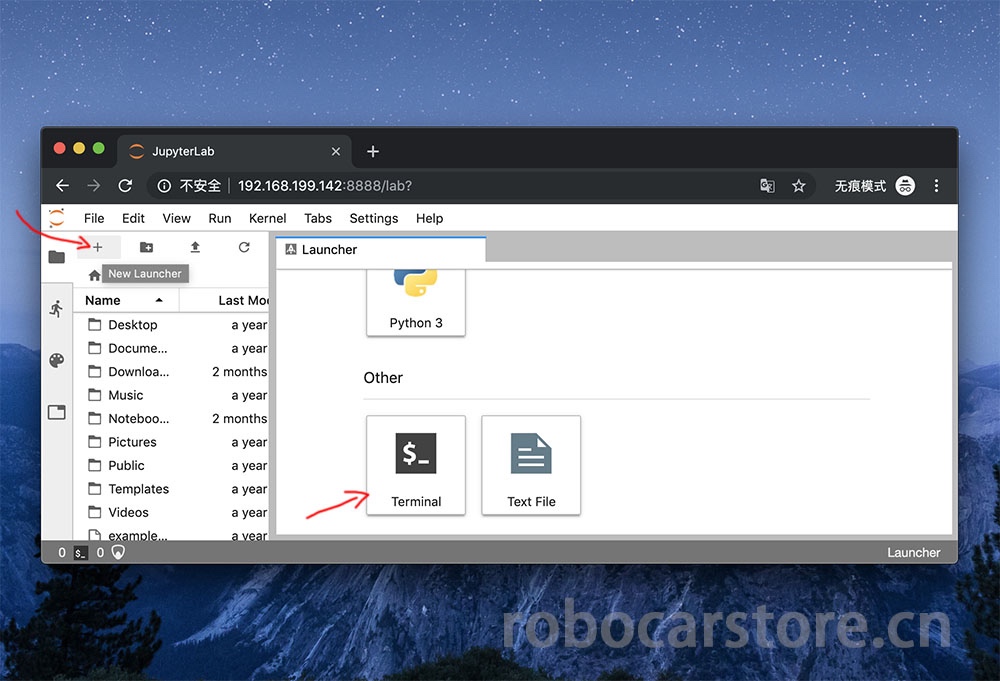
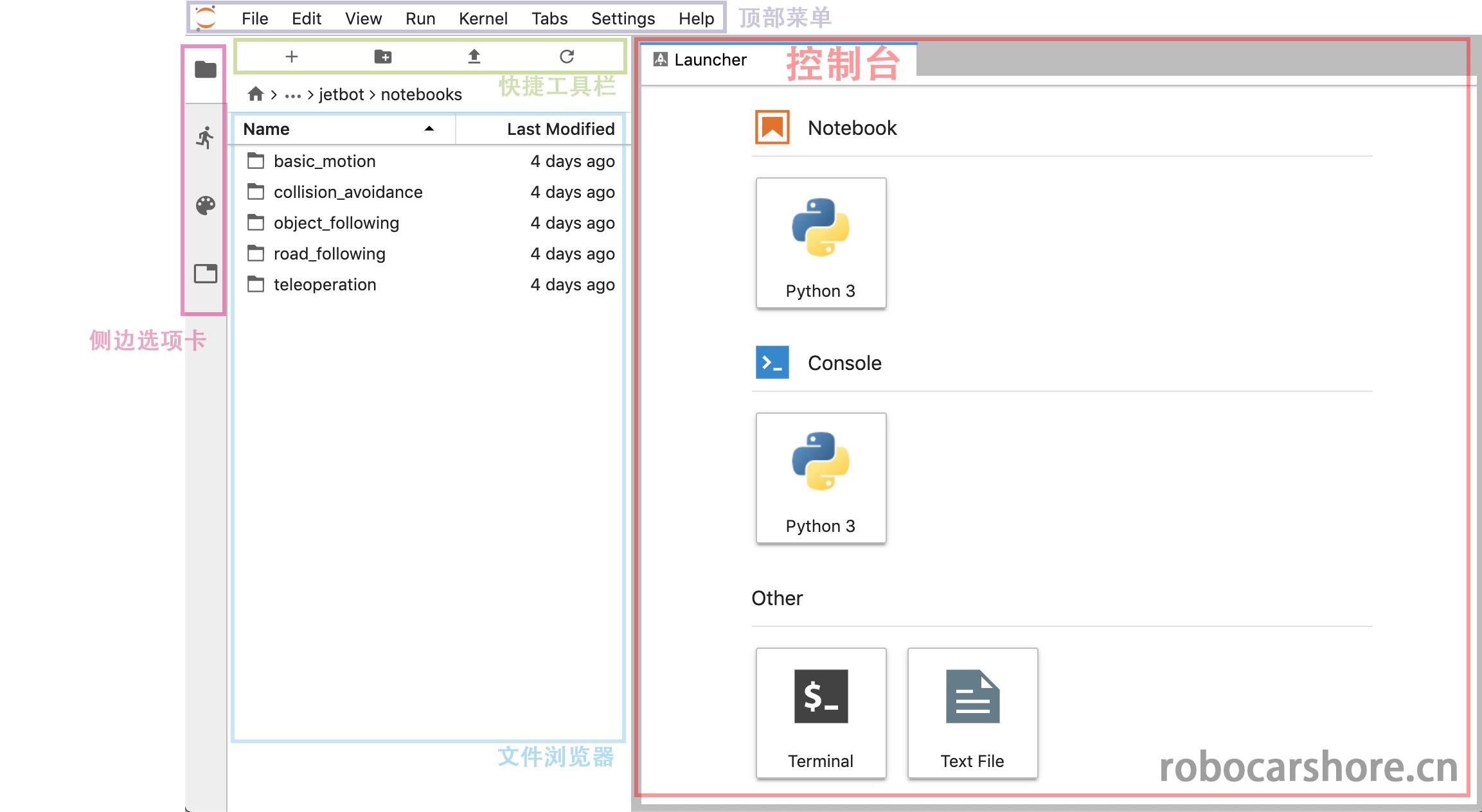
We have already used jupyter lab through the browser in the previous article, and we will continue to use this tool. Therefore, it is necessary to understand the interface of jupyter lab, and have an impression of the names of different areas, which will make your subsequent operations more convenient.
Roughly explain:
- Top menu:Includes all operations of jupyter lab, such as creating, saving, closing the running kernel, etc.
- Console:It is a shortcut for quickly creating a notebook and opening a Terminal (terminal, or command line).
- Quick toolbar:It is a shortcut, from left to right, which represents "create a console", "create a folder", "upload a file", "refresh".
- Side tab:You can click on "file browser", "running kernel list", "command list", "window list" to open them.
Next, we will explain what the python statements in the notebook mean and what they are used for.
You can view the complete notebook here, with a better style:
https://github.com/ling3ye/jetbot/blob/master/notebooks/basic_motion/basic_motion.ipynb
You can also download this notebook to replace your original basic motion notebook.
Welcome to the Jetbot programming interface based on jupyter lab.
This type of document is called "jupyter Notebook", which is a document that combines text, code, and graphics. It is more orderly and simple than the method of only having code and comments. If you are not familiar with 'Jupyter', I recommend you to click the "help" drop-down menu in the top menu bar, which has many usage references for Jupyter lab.
And in this notebook, we will introduce the basic programming knowledge of JetBot and how to program your JetBot through python.
Before starting to program JetBot, we need to import the "Robot" class. This class allows us to easily control the motors of JetBot! It is included in the "jetbot" package.
If you are a Python beginner, a package is a folder containing code files.
These code files are called modules (models).
To load the Robot class, please highlight the cell below and press ctrl + enter or the play icon above. This operation will execute the code in the cell.
Now that we have loaded the Robot class, we can use the following statement to initialize this instance (instance).
Now that we have created a Robot instance named "Robot", we can use this instance to control our robot (JetBot). Execute the following command to make JetBot rotate counterclockwise at 30% of its maximum speed.
Note: This command will make the robot move. Please ensure there is enough space for the robot to move, to avoid falling and damaging the robot, or simply put it on the ground.
Great, you should now see the JetBot rotating counterclockwise!
If your robot did not turn left, this means that one or both of the motors are not working properly. Try turning off the power and find the motor that is not working properly, then swap the wires of the positive and negative poles.
Reminder: Please ensure that the wires are checked carefully and the wires should be unplugged when the power is turned off.
Now, execute the following stop method to stop the robot.
Sometimes we may want to move the robot for a certain period of time. To do this, we can use the time package in Python. Execute the following code to load time.
This package defines the sleep function, which causes the code to stop for a specified number of seconds before running the next command. Try the following command combination to make the robot turn left for half a second.
Great, you should now see the JetBot left turn for a moment, then stop.
The robot class also has right, forward, and backwards methods. Try creating your own cell, refer to the previous code, and make the robot move forward at 50% speed for one second.
To create a new cell, click on the highlighted bar on the side and press "b" or click the "+" icon in the toolbar above the notebook. Once done, try to enter the code that you think will make the robot move forward at 50% speed for one second, and then execute it to verify if the code you entered is correct.
Above we saw how to use left, right etc. commands to control JetBot. But what if we want to set the speed of each motor separately? There are actually two ways to do this.
The first method is to call the set_motors method. For example, to turn left for one second, we can set the left motor speed to 30% and the right motor to 60%, which will achieve a different turning angle, as shown below.
robot.set_motors(0.3, 0.6)
Great! You should now see the JetBot turn left. But actually we can use another way to achieve the same result.
In the Robot class, there are two properties named left_motor and right_motor, which represent the speed values of the left and right motors. These properties are instances of the Motor class, each of which contains a value value. When this value changes, it triggers events, which reassign the motor speed value.
So in this motor class, we attach a function that will update the motor command whenever the value changes. Therefore, to achieve the same result as we did above, we can execute the following.
robot.left_motor.value = 0.3

robot.right_motor.value = 0.6

robot.left_motor.value = 0.0

robot.right_motor.value = 0.0
You should now see the JetBot move in the same way!
Next, we will introduce a very cool feature, which is that we can make some graphical small buttons (controls) on this page using Jupyter Notebooks, and use traitlets to connect these small widgets to control the operation. This way, we can control our car through the buttons on the web page, which will be very convenient and fun.
To illustrate how to write the program, we first create and display two sliders for controlling the motors.
import ipywidgets.widgets as widgets

from IPython.display import display

# create two sliders with range [-1.0, 1.0]

left_slider = widgets.FloatSlider(description='left', min=\-1.0, max=1.0, step=0.01, orientation='vertical')

right_slider = widgets.FloatSlider(description='right', min=\-1.0, max=1.0, step=0.01, orientation='vertical')

# create a horizontal box container to place the sliders next to eachother

slider_container = widgets.HBox([left_slider, right_slider])

# display the container in this cell's output

display(slider_container)
You should now see two vertical sliders displayed above.
Tip: In Jupyter Lab, you can actually pop out the cell to other windows, such as these two sliders. Although they are not in the same window, they are still connected to this notebook. The specific operation is to move the mouse to the cell (for example: slider) and right-click, select "Create new view for output" (Create new view for output), and then drag the window to the place you are satisfied with.
Try clicking and dragging the sliders up and down, you will see the value change. Note that the motors of the JetBot are not responding when we move the sliders, because we have not connected them to the motors yet! We will achieve this by using the link function in the traitlets package below.
left_link = traitlets.link((left_slider, 'value'), (robot.left_motor, 'value'))

right_link = traitlets.link((right_slider, 'value'), (robot.right_motor, 'value'))
Now try dragging the sliders (you need to move them slowly, otherwise your JetBot will suddenly run out of bounds and cause damage), you should see the corresponding motors turning!
We created the link function above actually creates a two-way link! This means that if we set the motor value somewhere else, the slider will update accordingly! Try executing the following code block:
Executing the above code should see the slider change, responding to the motor speed value. If we want to disconnect this connection, we can call the unlink method to disconnect each connection one by one.
But if we don't want a two-way connection, for example, we just want to use the slider to display the motor speed value, but not to control it, then to achieve this function, we can use the dlink function, the left is the source, the right is the target (the data comes from the motor, and then it is displayed on the target).
left_link = traitlets.dlink((robot.left_motor, 'value'), (left_slider, 'value'))

right_link = traitlets.dlink((robot.right_motor, 'value'), (right_slider, 'value'))
Now you can move the sliders up and down, you should see that the robot's motors have no reaction. But when we set the motor speed value and execute it, the slider will respond to the corresponding numerical update.
Another way to use traitlets is to attach functions to events (for example forward). As soon as the object changes, the function will be called, and some information about the change will be passed, such as the old value and the new value.
Let's create some buttons to control the robot displayed in the notebook.
button_layout = widgets.Layout(width='100px', height='80px', align_self='center')

stop_button = widgets.Button(description='stop', button_style='danger', layout=button_layout)

forward_button = widgets.Button(description='forward',

backward_button = widgets.Button(description='backward', layout=button_layout)

left_button = widgets.Button(description='left', layout=button_layout)

right_button = widgets.Button(description='right', layout=button_layout)

middle_box = widgets.HBox([left_button, stop_button, right_button],

layout=widgets.Layout(align_self='center'))

controls_box = widgets.VBox([forward_button, middle_box, backward_button])
You should now see a set of robot control buttons displayed above, but clicking the buttons will not do anything. To control, we need to create some functions attached to the on_click event of the buttons.
def step_forward(change):

def step_backward(change):
Now that we have defined those functions, let's attach them to the on_click event of each button.
# link buttons to actions

stop_button.on_click(stop)

forward_button.on_click(step_forward) backward_button.on_click(step_backward) left_button.on_click(step_left)

right_button.on_click(step_right)
Now, when you click each button, you should see the JetBot move accordingly.
Here we show how to use the 'heartbeat' package to stop the movement of the JetBot. This is a simple way to detect if the JetBot is still connected to the browser. You can adjust the heartbeat period (in seconds) using the slider shown below. If the heartbeat cannot communicate back and forth between the browser, the heartbeat's status property will be set to dead. Once the connection is restored, the status property will be set to alive.
from jetbot import Heartbeat

# this function will be called when heartbeat 'alive' status changes

def handle_heartbeat_status(change):

if change['new'] == Heartbeat.Status.dead:

heartbeat.observe(handle_heartbeat_status, names='status')

period_slider = widgets.FloatSlider(description='period', min=0.001, max=0.5, step=0.01, value=0.5)

traitlets.dlink((period_slider, 'value'), (heartbeat, 'period'))

display(period_slider, heartbeat.pulseout)
Try executing the following code to start the motor, then lower the slider to see what happens. You can also try turning off your robot or computer.
This is a simple notebook example, I hope it will help you build confidence in programming your JetBot.