
跳至内容

DonkeyCar

从比赛到机器学习的奇妙旅程 - Robocar视频集合

Robocar视频集合

在当今科技飞速发展的时代,自动驾驶技术已经成为一个备受关注的领域。而在这个领域中,Robocar(智能小车)作为一个入门级的平台,为爱好者、开发者和研究人员提供了一个低成本、高灵活性的实验工具。无论是参加比赛、训练模型,还是通过动画了解机器学习的基本原理,Robocar都能带给你无尽的乐趣和启发。在这篇文章中,我们将深入探讨Robocar的世界,分享一些精彩的视频内容,并带你领略这一领域的魅力。

Donkey Car比赛

如果你对自动驾驶技术感兴趣,那么一定不能错过Donkey Car比赛!这是一项专为DIY爱好者设计的赛事,参赛者需要使用基于开源框架的Donkey Car完成一系列挑战任务。这些任务通常包括赛道竞速、障碍物避让以及路径规划等。

在比赛中,每一辆Donkey Car都搭载了摄像头和微型计算机(如Raspberry Pi或Jetson Nano),并通过深度学习算法进行实时决策。参赛者需要提前训练自己的模型,以确保车辆能够在复杂环境中准确导航。观看这些比赛视频,你不仅可以看到选手们如何优化他们的硬件配置,还能感受到速度与智慧碰撞出的火花。

值得一提的是,这类比赛不仅仅是为了娱乐,它还为参与者提供了宝贵的实践经验。通过参与比赛,你可以学到如何调试代码、改进模型性能,甚至与其他玩家交流心得,共同进步。

日本玩家训练他们的Donkey Car

在日本,许多科技爱好者将Donkey Car视为一种艺术形式。他们投入大量时间和精力来训练自己的小车,使其能够在各种场景下表现出色。这段视频展示了日本玩家如何一步步地训练他们的Donkey Car,从数据采集到模型部署,整个过程充满了匠心独运。

首先,他们会设置一个固定的赛道,并利用车载摄像头记录大量的驾驶数据。随后,这些数据会被上传到云端服务器,在那里运行深度学习算法,生成初步的驾驶模型。最后,玩家会将模型下载回小车,并在真实环境中测试其表现。如果发现模型存在缺陷,他们会反复调整参数并重新训练,直到达到满意的效果。

这种精益求精的态度让人印象深刻。对于初学者来说,这样的训练流程也具有很高的参考价值。无论你是想提升自己的编程技能,还是希望深入了解机器学习的工作机制,都可以从中获得启发。

台湾玩家分享他们怎样训练Donkey Car

来自台湾的玩家们则更注重知识的分享。在这段视频中,他们演示了训练一辆Donkey Car的过程,包括手动操控和设置障碍物等。你可以发现,整个训练过程不仅仅是技术上的操作,更像是一场充满创意与耐心的实验。

首先,他们会通过手动驾驶的方式收集数据。这一步看似简单,但实际上却非常关键。玩家需要在赛道上反复驾驶小车,确保摄像头能够捕捉到各种角度的画面,比如直道、弯道以及不同光线条件下的环境。这种多样化的数据集可以帮助模型更好地适应真实世界中的复杂场景。

接着,他们会精心设计一些障碍物,并将这些障碍物放置在赛道的不同位置。这样一来,小车在训练过程中就能够学会如何识别并避开障碍物。这种方法不仅提高了模型的鲁棒性,也让训练过程变得更加有趣。

2D动画解释如何机器学习训练自动驾驶车

如果你是自动驾驶领域的新手,可能会觉得机器学习的概念有些抽象。别担心!这段2D动画视频用生动形象的方式为你揭开了背后的奥秘。

动画从基础概念讲起,介绍了神经网络是如何模仿人类大脑工作的。接着,它演示了数据如何被输入到模型中,经过多层计算后输出预测结果。更重要的是,动画还解释了“监督学习”的核心思想:通过不断比较预测值与实际值之间的差异,模型能够逐渐优化自身的表现。

虽然这段视频没有直接涉及Donkey Car,但它为你提供了一个宏观视角,帮助你理解自动驾驶技术背后的科学原理。看完之后,你会发现自己对Robocar的兴趣更加浓厚了!

Donkey Car详解(2) – 树莓派 安装

Donkey Car详解(2) – 树莓派 安装

robocarstore/173807615525023113

现在官方已经没有提供懒人版的Donkey Car 了,所以这次就分享一下,小编在树莓派(Raspberry Pi 3 B+)安装Donkey Car 的过程。

本文参考: http://docs.donkeycar.com/guide/robot_sbc/setup_raspberry_pi/


环境

官方推荐使用Raspian Lite(Stretch) (352MB)。但我使用的是带桌面的版本,如下

树莓派OS:
– Raspbian Buster with desktop
Version:July 2019
Release date:2019-07-10
Kernel version:4.19

下载地址:

https://www.raspberrypi.org/downloads/raspbian/

怎么刷写安装树莓派,联网,这里就不多说了。

假设你已经安装好树莓派系统,并且能联网,可以选择连接显示器,直接操作(本示例的操作模式),也可以远程SSH操作。你喜欢就好。

打开命令行,我们开始吧!

donkeycar-rpi


开始安装

1,在安装前更新你的系统

要更新你的系统,输入以下命令:

更新系统需要花费很大时间,而且可能需要重复多次才能更新完成。请耐心操作。

2,配置树莓派开启摄像头,I2C,扩展文件系统

要打开树莓派的配置对话框,在命令行输入:

① 开启I2C

05 Interfacing Options -> P5 I2C ->「Yes」

rpi_i2c

② 开启摄像头:

05 Interfacing Options -> P1 Camera -> 「Yes」

robocarstore/173807630025267416

③ 扩展文件系统

7 Advanced Options -> A1 Exapand Filesystem

robocarstore/173807631425048117

设置好,之后退出配置对话框,会提示是否现在重启,选择「Yes」重启系统。

robocarstore/173807632825076218

3,安装Donkey Car 需要的依赖项

在命令行中输入以下命令:

sudo apt-get install -y build-essential python3 python3-dev python3-pip python3-virtualenv python3-numpy python3-picamera python3-pandas python3-rpi.gpio i2c-tools avahi-utils joystick libopenjp2-7-dev libtiff5-dev gfortran libatlas-base-dev libopenblas-dev libhdf5-serial-dev git

经过漫长的等待终将安装完成,如果爆错误,请重新运行一遍。

(如果还是解决不了问题,请在留言区分享你所遇到的问题,请贴出你的系统版本,尽可能多的信息,我们才有可能帮助到你。)

4,安装OpenCV的依赖项(可选)

这一步骤可选,如果你没有用到OpenCV的功能可以不安装。

但如果还是想安装的话,在命令行输入以下命令:

sudo apt-get install libilmbase-dev libopenexr-dev libgstreamer1.0-dev libjasper-dev libwebp-dev libatlas-base-dev libavcodec-dev libavformat-dev libswscale-dev libqtgui4 libqt4-test

5,安装虚拟环境

在命令行输入:

python3 -m virtualenv -p python3 env --system-site-packages

echo "source env/bin/activate" >> ~/.bashrc

运行完以上命令,命令行会多了个(env)前缀,表示我们在一个叫作env的虚拟环境下,进行操作。如下图:

robocarstore/173807634625230519

虚拟环境的作用是,避免树莓派运行多个项目的时候,不会因为更新了某个依赖项或者自动清除了某个依赖项,在其他项目中出现了不可预测的错误。

现在,每次开机都会自动进入env的虚拟环境,如果想退出,命令行输入:deactivate ,即可。

6,安装Donkey Car 的 Python 代码

创建目录,并进入该目录

在用户目录下,新建一个名为projects 的文件夹(目录),并进入该文件夹,输入命令如下:

注意:直接进入用户目录,只需要在命令行输入: cd ,回车即可。

从GitHub上克隆整个Donkey car项目

输入以下命令:

git clone https://github.com/autorope/donkeycar

接着,又开始漫长的等待,因为github在国内的速度不是一般的快,请耐心等待,如果一次不行,则再运行一次。

提示:如果对命令行指令比较熟悉的,可使用scp指令,通过一些软件项目打包下载后上传到树莓派的当前目录。具体用法请自行搜索。

当git clone(克隆) 完成,我们使用使用以下命令操作:

pip install tensorflow==1.13.1

提示:
– 当运行 pip install -e .[pi] 安装,出现错误时,可尝试再执行一次。
– 当运行 pip install tensorflow==1.13.1 ,可能会提示下载的文件的检验哈希码不正确,导致没有办法下载,可根据错误提示的下载地址,手动使用 wget 命令下载,下载完成后,使用 pip install 「下载的文件名称」,进行安装。

验证Tensorflow安装是否成功

命令行输入python进入Python的交互编程模式:

输入以下代码检查:

print(tensorflow.__version__)

robocarstore/173807637225182120

当看到1.13.1的版本好,证明你已经安装Tensorflow成功

注意:python第一次加载tensorflow会有一些提示,请不用担心,这不是错误提示。

7,安装Python的OpenCV(可选)

安装OpenCV

这个也是非必须安装的,如果你没有用到OpenCV的功能。

但如果你还是想安装,请输入以下命令:

pip install opencv-python

验证是否安装OpenCV成功

同样进入python的交互编程模式,输入以下代码:

import cv2
print(cv2.__version__)

Donkey Car详解(2) – 树莓派 安装

Donkey Car详解(2) – 树莓派 安装

robocarstore/173807615525023113

现在官方已经没有提供懒人版的Donkey Car 了,所以这次就分享一下,小编在树莓派(Raspberry Pi 3 B+)安装Donkey Car 的过程。

本文参考: http://docs.donkeycar.com/guide/robot_sbc/setup_raspberry_pi/


环境

官方推荐使用Raspian Lite(Stretch) (352MB)。但我使用的是带桌面的版本,如下

树莓派OS:
– Raspbian Buster with desktop
Version:July 2019
Release date:2019-07-10
Kernel version:4.19

下载地址:

https://www.raspberrypi.org/downloads/raspbian/

怎么刷写安装树莓派,联网,这里就不多说了。

假设你已经安装好树莓派系统,并且能联网,可以选择连接显示器,直接操作(本示例的操作模式),也可以远程SSH操作。你喜欢就好。

打开命令行,我们开始吧!

donkeycar-rpi


开始安装

1,在安装前更新你的系统

要更新你的系统,输入以下命令:

更新系统需要花费很大时间,而且可能需要重复多次才能更新完成。请耐心操作。

2,配置树莓派开启摄像头,I2C,扩展文件系统

要打开树莓派的配置对话框,在命令行输入:

① 开启I2C

05 Interfacing Options -> P5 I2C ->「Yes」

rpi_i2c

② 开启摄像头:

05 Interfacing Options -> P1 Camera -> 「Yes」

robocarstore/173807630025267416

③ 扩展文件系统

7 Advanced Options -> A1 Exapand Filesystem

robocarstore/173807631425048117

设置好,之后退出配置对话框,会提示是否现在重启,选择「Yes」重启系统。

robocarstore/173807632825076218

3,安装Donkey Car 需要的依赖项

在命令行中输入以下命令:

sudo apt-get install -y build-essential python3 python3-dev python3-pip python3-virtualenv python3-numpy python3-picamera python3-pandas python3-rpi.gpio i2c-tools avahi-utils joystick libopenjp2-7-dev libtiff5-dev gfortran libatlas-base-dev libopenblas-dev libhdf5-serial-dev git

经过漫长的等待终将安装完成,如果爆错误,请重新运行一遍。

(如果还是解决不了问题,请在留言区分享你所遇到的问题,请贴出你的系统版本,尽可能多的信息,我们才有可能帮助到你。)

4,安装OpenCV的依赖项(可选)

这一步骤可选,如果你没有用到OpenCV的功能可以不安装。

但如果还是想安装的话,在命令行输入以下命令:

sudo apt-get install libilmbase-dev libopenexr-dev libgstreamer1.0-dev libjasper-dev libwebp-dev libatlas-base-dev libavcodec-dev libavformat-dev libswscale-dev libqtgui4 libqt4-test

5,安装虚拟环境

在命令行输入:

python3 -m virtualenv -p python3 env --system-site-packages

echo "source env/bin/activate" >> ~/.bashrc

运行完以上命令,命令行会多了个(env)前缀,表示我们在一个叫作env的虚拟环境下,进行操作。如下图:

robocarstore/173807634625230519

虚拟环境的作用是,避免树莓派运行多个项目的时候,不会因为更新了某个依赖项或者自动清除了某个依赖项,在其他项目中出现了不可预测的错误。

现在,每次开机都会自动进入env的虚拟环境,如果想退出,命令行输入:deactivate ,即可。

6,安装Donkey Car 的 Python 代码

创建目录,并进入该目录

在用户目录下,新建一个名为projects 的文件夹(目录),并进入该文件夹,输入命令如下:

注意:直接进入用户目录,只需要在命令行输入: cd ,回车即可。

从GitHub上克隆整个Donkey car项目

输入以下命令:

git clone https://github.com/autorope/donkeycar

接着,又开始漫长的等待,因为github在国内的速度不是一般的快,请耐心等待,如果一次不行,则再运行一次。

提示:如果对命令行指令比较熟悉的,可使用scp指令,通过一些软件项目打包下载后上传到树莓派的当前目录。具体用法请自行搜索。

当git clone(克隆) 完成,我们使用使用以下命令操作:

pip install tensorflow==1.13.1

提示:
– 当运行 pip install -e .[pi] 安装,出现错误时,可尝试再执行一次。
– 当运行 pip install tensorflow==1.13.1 ,可能会提示下载的文件的检验哈希码不正确,导致没有办法下载,可根据错误提示的下载地址,手动使用 wget 命令下载,下载完成后,使用 pip install 「下载的文件名称」,进行安装。

验证Tensorflow安装是否成功

命令行输入python进入Python的交互编程模式:

输入以下代码检查:

print(tensorflow.__version__)

robocarstore/173807637225182120

当看到1.13.1的版本好,证明你已经安装Tensorflow成功

注意:python第一次加载tensorflow会有一些提示,请不用担心,这不是错误提示。

7,安装Python的OpenCV(可选)

安装OpenCV

这个也是非必须安装的,如果你没有用到OpenCV的功能。

但如果你还是想安装,请输入以下命令:

pip install opencv-python

验证是否安装OpenCV成功

同样进入python的交互编程模式,输入以下代码:

import cv2
print(cv2.__version__)

Donkey Car详解(2) – 树莓派 安装

Donkey Car详解(2) – 树莓派 安装

robocarstore/173807615525023113

现在官方已经没有提供懒人版的Donkey Car 了,所以这次就分享一下,小编在树莓派(Raspberry Pi 3 B+)安装Donkey Car 的过程。

本文参考: http://docs.donkeycar.com/guide/robot_sbc/setup_raspberry_pi/


环境

官方推荐使用Raspian Lite(Stretch) (352MB)。但我使用的是带桌面的版本,如下

树莓派OS:
– Raspbian Buster with desktop
Version:July 2019
Release date:2019-07-10
Kernel version:4.19

下载地址:

https://www.raspberrypi.org/downloads/raspbian/

怎么刷写安装树莓派,联网,这里就不多说了。

假设你已经安装好树莓派系统,并且能联网,可以选择连接显示器,直接操作(本示例的操作模式),也可以远程SSH操作。你喜欢就好。

打开命令行,我们开始吧!

donkeycar-rpi


开始安装

1,在安装前更新你的系统

要更新你的系统,输入以下命令:

更新系统需要花费很大时间,而且可能需要重复多次才能更新完成。请耐心操作。

2,配置树莓派开启摄像头,I2C,扩展文件系统

要打开树莓派的配置对话框,在命令行输入:

① 开启I2C

05 Interfacing Options -> P5 I2C ->「Yes」

rpi_i2c

② 开启摄像头:

05 Interfacing Options -> P1 Camera -> 「Yes」

robocarstore/173807630025267416

③ 扩展文件系统

7 Advanced Options -> A1 Exapand Filesystem

robocarstore/173807631425048117

设置好,之后退出配置对话框,会提示是否现在重启,选择「Yes」重启系统。

robocarstore/173807632825076218

3,安装Donkey Car 需要的依赖项

在命令行中输入以下命令:

sudo apt-get install -y build-essential python3 python3-dev python3-pip python3-virtualenv python3-numpy python3-picamera python3-pandas python3-rpi.gpio i2c-tools avahi-utils joystick libopenjp2-7-dev libtiff5-dev gfortran libatlas-base-dev libopenblas-dev libhdf5-serial-dev git

经过漫长的等待终将安装完成,如果爆错误,请重新运行一遍。

(如果还是解决不了问题,请在留言区分享你所遇到的问题,请贴出你的系统版本,尽可能多的信息,我们才有可能帮助到你。)

4,安装OpenCV的依赖项(可选)

这一步骤可选,如果你没有用到OpenCV的功能可以不安装。

但如果还是想安装的话,在命令行输入以下命令:

sudo apt-get install libilmbase-dev libopenexr-dev libgstreamer1.0-dev libjasper-dev libwebp-dev libatlas-base-dev libavcodec-dev libavformat-dev libswscale-dev libqtgui4 libqt4-test

5,安装虚拟环境

在命令行输入:

python3 -m virtualenv -p python3 env --system-site-packages

echo "source env/bin/activate" >> ~/.bashrc

运行完以上命令,命令行会多了个(env)前缀,表示我们在一个叫作env的虚拟环境下,进行操作。如下图:

robocarstore/173807634625230519

虚拟环境的作用是,避免树莓派运行多个项目的时候,不会因为更新了某个依赖项或者自动清除了某个依赖项,在其他项目中出现了不可预测的错误。

现在,每次开机都会自动进入env的虚拟环境,如果想退出,命令行输入:deactivate ,即可。

6,安装Donkey Car 的 Python 代码

创建目录,并进入该目录

在用户目录下,新建一个名为projects 的文件夹(目录),并进入该文件夹,输入命令如下:

注意:直接进入用户目录,只需要在命令行输入: cd ,回车即可。

从GitHub上克隆整个Donkey car项目

输入以下命令:

git clone https://github.com/autorope/donkeycar

接着,又开始漫长的等待,因为github在国内的速度不是一般的快,请耐心等待,如果一次不行,则再运行一次。

提示:如果对命令行指令比较熟悉的,可使用scp指令,通过一些软件项目打包下载后上传到树莓派的当前目录。具体用法请自行搜索。

当git clone(克隆) 完成,我们使用使用以下命令操作:

pip install tensorflow==1.13.1

提示:
– 当运行 pip install -e .[pi] 安装,出现错误时,可尝试再执行一次。
– 当运行 pip install tensorflow==1.13.1 ,可能会提示下载的文件的检验哈希码不正确,导致没有办法下载,可根据错误提示的下载地址,手动使用 wget 命令下载,下载完成后,使用 pip install 「下载的文件名称」,进行安装。

验证Tensorflow安装是否成功

命令行输入python进入Python的交互编程模式:

输入以下代码检查:

print(tensorflow.__version__)

robocarstore/173807637225182120

当看到1.13.1的版本好,证明你已经安装Tensorflow成功

注意:python第一次加载tensorflow会有一些提示,请不用担心,这不是错误提示。

7,安装Python的OpenCV(可选)

安装OpenCV

这个也是非必须安装的,如果你没有用到OpenCV的功能。

但如果你还是想安装,请输入以下命令:

pip install opencv-python

验证是否安装OpenCV成功

同样进入python的交互编程模式,输入以下代码:

import cv2
print(cv2.__version__)

Donkey Car详解(2) – 树莓派 安装

Donkey Car详解(2) – 树莓派 安装

robocarstore/173807615525023113

现在官方已经没有提供懒人版的Donkey Car 了,所以这次就分享一下,小编在树莓派(Raspberry Pi 3 B+)安装Donkey Car 的过程。

本文参考: http://docs.donkeycar.com/guide/robot_sbc/setup_raspberry_pi/


环境

官方推荐使用Raspian Lite(Stretch) (352MB)。但我使用的是带桌面的版本,如下

树莓派OS:
– Raspbian Buster with desktop
Version:July 2019
Release date:2019-07-10
Kernel version:4.19

下载地址:

https://www.raspberrypi.org/downloads/raspbian/

怎么刷写安装树莓派,联网,这里就不多说了。

假设你已经安装好树莓派系统,并且能联网,可以选择连接显示器,直接操作(本示例的操作模式),也可以远程SSH操作。你喜欢就好。

打开命令行,我们开始吧!

donkeycar-rpi


开始安装

1,在安装前更新你的系统

要更新你的系统,输入以下命令:

更新系统需要花费很大时间,而且可能需要重复多次才能更新完成。请耐心操作。

2,配置树莓派开启摄像头,I2C,扩展文件系统

要打开树莓派的配置对话框,在命令行输入:

① 开启I2C

05 Interfacing Options -> P5 I2C ->「Yes」

rpi_i2c

② 开启摄像头:

05 Interfacing Options -> P1 Camera -> 「Yes」

robocarstore/173807630025267416

③ 扩展文件系统

7 Advanced Options -> A1 Exapand Filesystem

robocarstore/173807631425048117

设置好,之后退出配置对话框,会提示是否现在重启,选择「Yes」重启系统。

robocarstore/173807632825076218

3,安装Donkey Car 需要的依赖项

在命令行中输入以下命令:

sudo apt-get install -y build-essential python3 python3-dev python3-pip python3-virtualenv python3-numpy python3-picamera python3-pandas python3-rpi.gpio i2c-tools avahi-utils joystick libopenjp2-7-dev libtiff5-dev gfortran libatlas-base-dev libopenblas-dev libhdf5-serial-dev git

经过漫长的等待终将安装完成,如果爆错误,请重新运行一遍。

(如果还是解决不了问题,请在留言区分享你所遇到的问题,请贴出你的系统版本,尽可能多的信息,我们才有可能帮助到你。)

4,安装OpenCV的依赖项(可选)

这一步骤可选,如果你没有用到OpenCV的功能可以不安装。

但如果还是想安装的话,在命令行输入以下命令:

sudo apt-get install libilmbase-dev libopenexr-dev libgstreamer1.0-dev libjasper-dev libwebp-dev libatlas-base-dev libavcodec-dev libavformat-dev libswscale-dev libqtgui4 libqt4-test

5,安装虚拟环境

在命令行输入:

python3 -m virtualenv -p python3 env --system-site-packages

echo "source env/bin/activate" >> ~/.bashrc

运行完以上命令,命令行会多了个(env)前缀,表示我们在一个叫作env的虚拟环境下,进行操作。如下图:

robocarstore/173807634625230519

虚拟环境的作用是,避免树莓派运行多个项目的时候,不会因为更新了某个依赖项或者自动清除了某个依赖项,在其他项目中出现了不可预测的错误。

现在,每次开机都会自动进入env的虚拟环境,如果想退出,命令行输入:deactivate ,即可。

6,安装Donkey Car 的 Python 代码

创建目录,并进入该目录

在用户目录下,新建一个名为projects 的文件夹(目录),并进入该文件夹,输入命令如下:

注意:直接进入用户目录,只需要在命令行输入: cd ,回车即可。

从GitHub上克隆整个Donkey car项目

输入以下命令:

git clone https://github.com/autorope/donkeycar

接着,又开始漫长的等待,因为github在国内的速度不是一般的快,请耐心等待,如果一次不行,则再运行一次。

提示:如果对命令行指令比较熟悉的,可使用scp指令,通过一些软件项目打包下载后上传到树莓派的当前目录。具体用法请自行搜索。

当git clone(克隆) 完成,我们使用使用以下命令操作:

pip install tensorflow==1.13.1

提示:
– 当运行 pip install -e .[pi] 安装,出现错误时,可尝试再执行一次。
– 当运行 pip install tensorflow==1.13.1 ,可能会提示下载的文件的检验哈希码不正确,导致没有办法下载,可根据错误提示的下载地址,手动使用 wget 命令下载,下载完成后,使用 pip install 「下载的文件名称」,进行安装。

验证Tensorflow安装是否成功

命令行输入python进入Python的交互编程模式:

输入以下代码检查:

print(tensorflow.__version__)

robocarstore/173807637225182120

当看到1.13.1的版本好,证明你已经安装Tensorflow成功

注意:python第一次加载tensorflow会有一些提示,请不用担心,这不是错误提示。

7,安装Python的OpenCV(可选)

安装OpenCV

这个也是非必须安装的,如果你没有用到OpenCV的功能。

但如果你还是想安装,请输入以下命令:

pip install opencv-python

验证是否安装OpenCV成功

同样进入python的交互编程模式,输入以下代码:

import cv2
print(cv2.__version__)

Donkey Car Detailed Explanation (2) – Raspberry Pi Installation

Donkey Car Detailed Explanation (2) – Raspberry Pi Installation

robocarstore/173807615525023113

Now the official Donkey Car is no longer provided with a lazy person's version, so this time we will share the process of installing Donkey Car on a Raspberry Pi (Raspberry Pi 3 B+).

Reference: http://docs.donkeycar.com/guide/robot_sbc/setup_raspberry_pi/


Environment

The official recommendation is to use Raspian Lite(Stretch) (352MB). However, I used the desktop version, as follows:

Raspberry Pi OS:
– Raspbian Buster with desktop
Version:July 2019
Release date:2019-07-10
Kernel version:4.19

Download Url:

https://www.raspberrypi.org/downloads/raspbian/

How to flash install Raspberry Pi, here is no more.

Assume you have already installed the Raspberry Pi system and can connect to the network, you can choose to connect to the display directly (this example's operation mode), or remotely SSH. You like it.

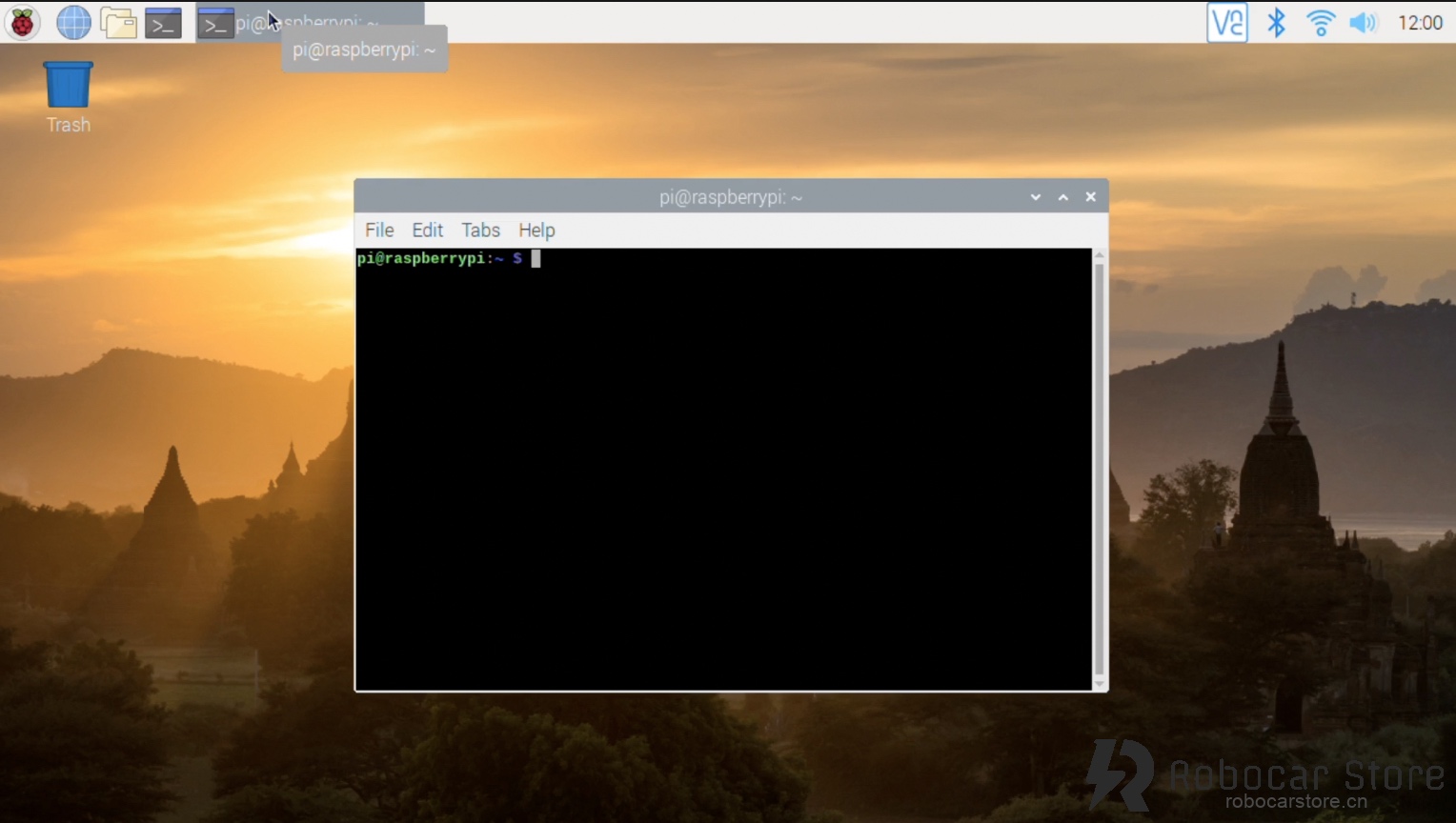
Open the command line, let's start!
donkeycar-rpi


Start Installation

1,Update your system before installation

To update your system, enter the following command:

Updating the system takes a long time and may need to be repeated multiple times to complete. Please be patient.

2,Configure Raspberry Pi to enable camera, I2C, expand file system

To open the Raspberry Pi configuration dialog, enter the following command in the command line:

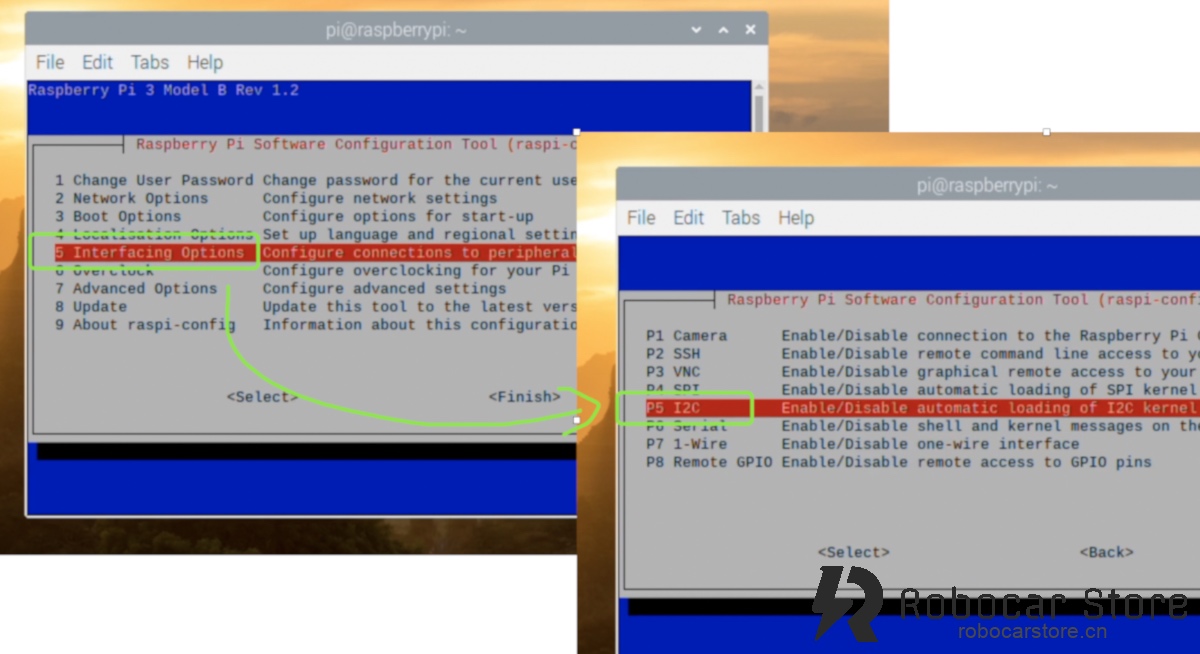
① Enable I2C

05 Interfacing Options -> P5 I2C ->「Yes」
rpi_i2c

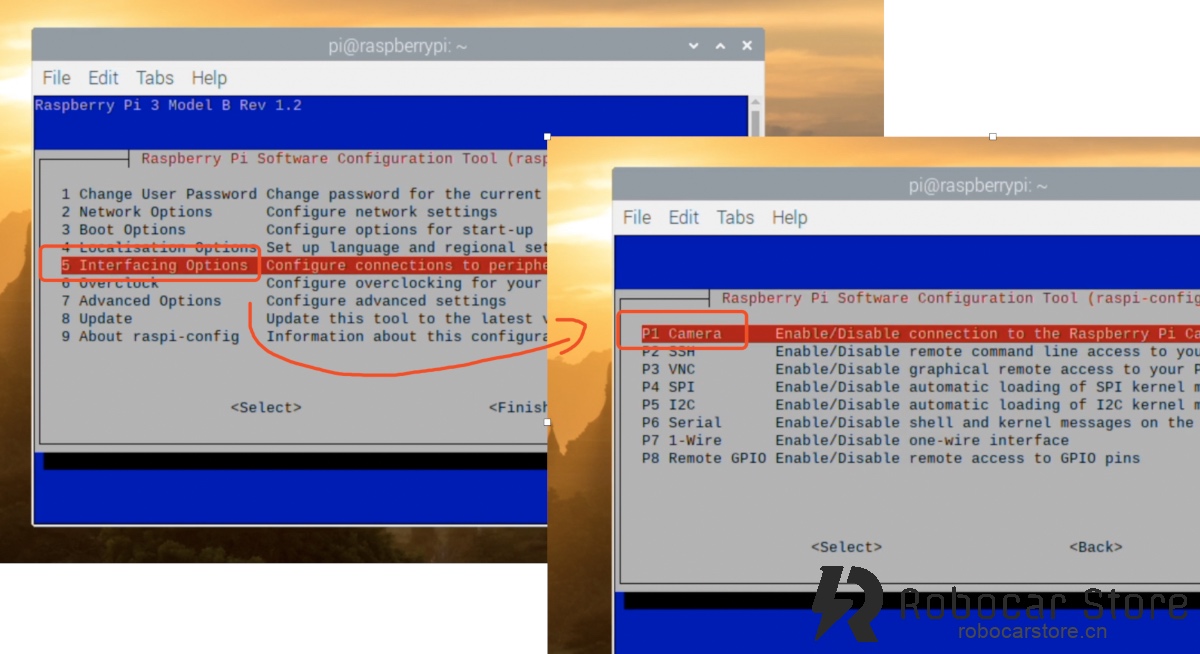
② Enable Camera:

05 Interfacing Options -> P1 Camera -> 「Yes」
robocarstore/173807630025267416

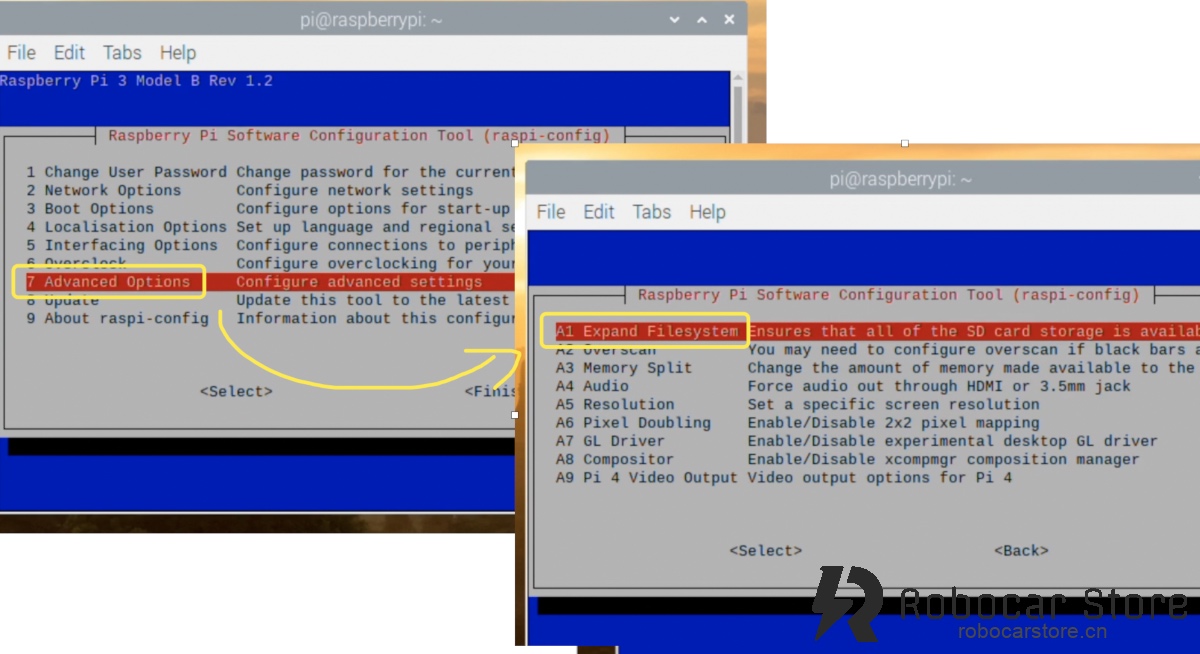
③ Expand File System

7 Advanced Options -> A1 Exapand Filesystem
robocarstore/173807631425048117

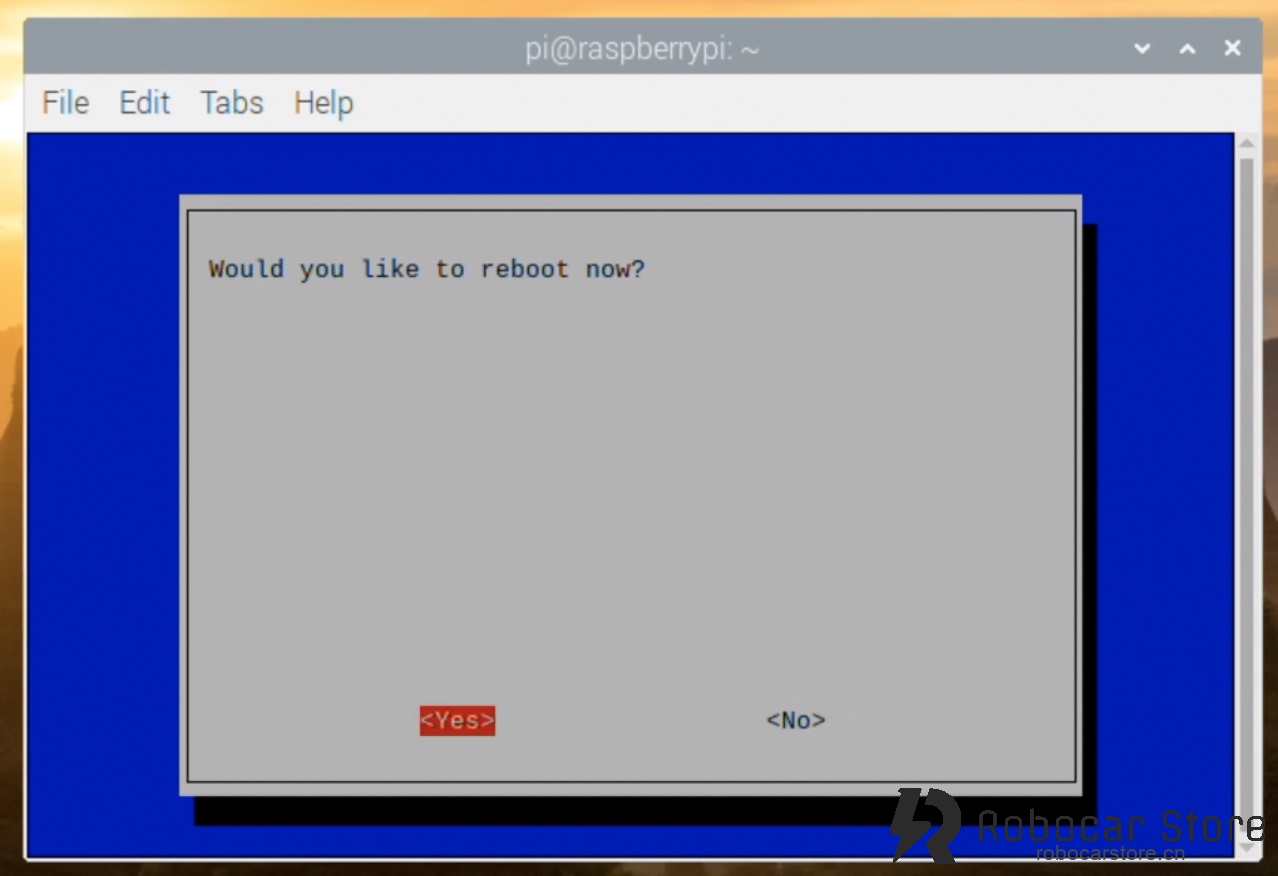
Set it up, then exit the configuration dialog, it will prompt whether to restart now, select 「Yes」 to restart the system.
robocarstore/173807632825076218

3,Install the dependencies required for Donkey Car

Enter the following command in the command line:

sudo apt-get install -y build-essential python3 python3-dev python3-pip python3-virtualenv python3-numpy python3-picamera python3-pandas python3-rpi.gpio i2c-tools avahi-utils joystick libopenjp2-7-dev libtiff5-dev gfortran libatlas-base-dev libopenblas-dev libhdf5-serial-dev git

After a long wait, it will be installed, if an error occurs, please run it again.

(If the problem is still not resolved, please share the problem you encountered in the comments section, and post your system version, as much information as possible, so we can help you.)

4,Install OpenCV dependencies (optional)

This step is optional, you can skip it if you don't use the OpenCV feature.

If you still want to install it, enter the following command in the command line:

sudo apt-get install libilmbase-dev libopenexr-dev libgstreamer1.0-dev libjasper-dev libwebp-dev libatlas-base-dev libavcodec-dev libavformat-dev libswscale-dev libqtgui4 libqt4-test

5,Install Virtual Environment

Enter the following command in the command line:

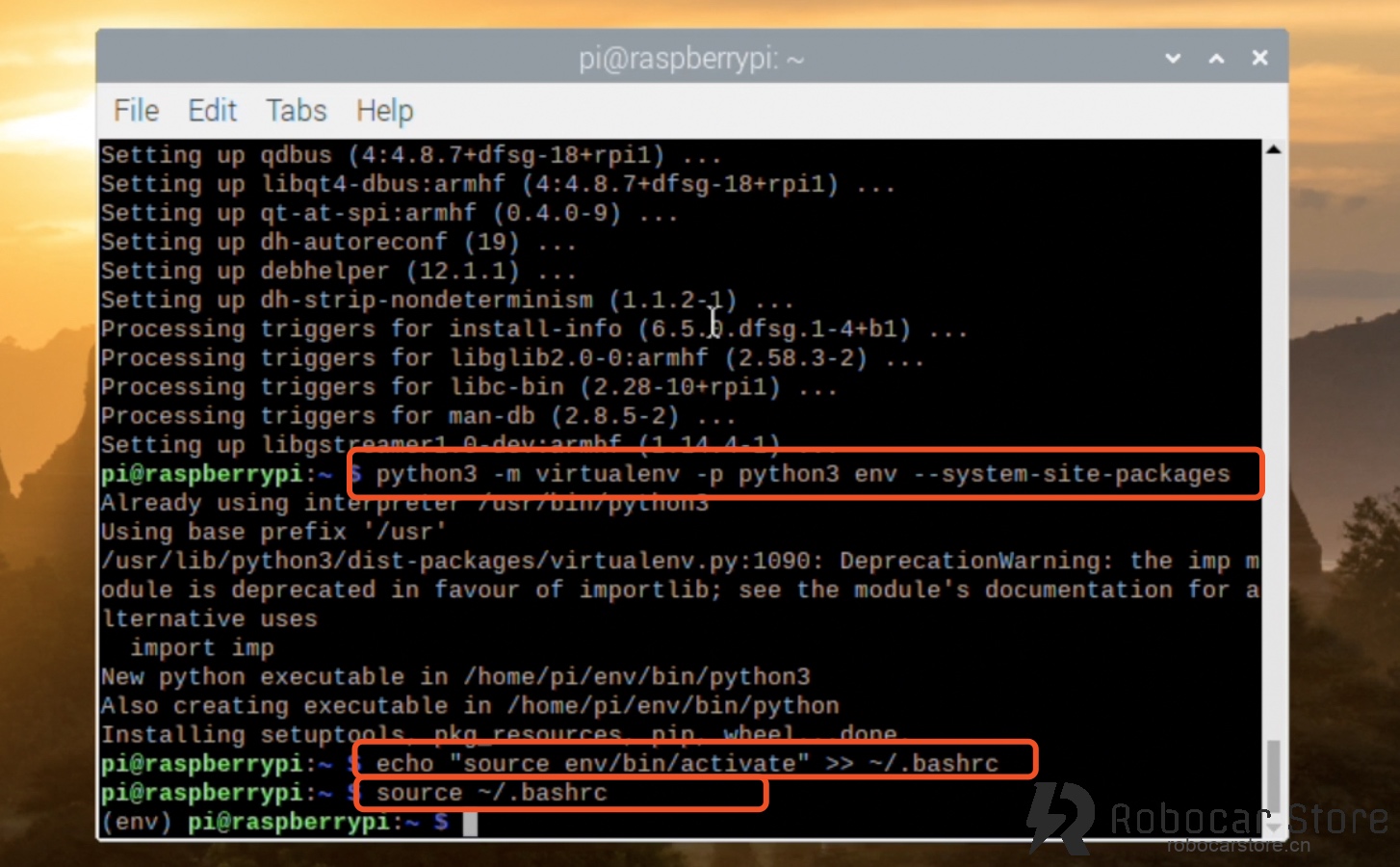
python3 -m virtualenv -p python3 env --system-site-packages

echo "source env/bin/activate" >> ~/.bashrc

After running the above commands, the command line will have a (env) prefix, indicating that we are operating in an environment called env.
robocarstore/173807634625230519

The purpose of the virtual environment is to avoid errors in other projects when updating a dependency or automatically clearing a dependency on the Raspberry Pi running multiple projects.

Now, every time the Raspberry Pi starts, it will automatically enter the env virtual environment. If you want to exit, enter the command line: deactivate .

6,Install Donkey Car's Python Code

Create Directory, and Enter the Directory

In the user directory, create a folder named projects (directory), and enter the folder, enter the following command:

Note: Directly enter the user directory, just enter the command line: cd , press Enter.

Clone the entire Donkey car project from GitHub

Enter the following command:

git clone https://github.com/autorope/donkeycar

Then, start a long wait, because the speed of github in China is not fast, please be patient, if it doesn't work, run it again.

Note: If you are familiar with command line instructions, you can use the scp command to download some software projects after packaging, and upload them to the current directory of the Raspberry Pi. For specific usage, please search for it yourself.

When git clone (clone) is complete, we use the following command to operate:

pip install tensorflow==1.13.1

Note:
– When running pip install -e .[pi] installation, if an error occurs, you can try to run it again.
– When running pip install tensorflow==1.13.1 , it may prompt that the downloaded file's hash code is incorrect, causing it to be unable to download. You can manually use the wget command to download it according to the error prompt, download it, and then use pip install 「downloaded file name」 to install it.

Verify Tensorflow Installation Success

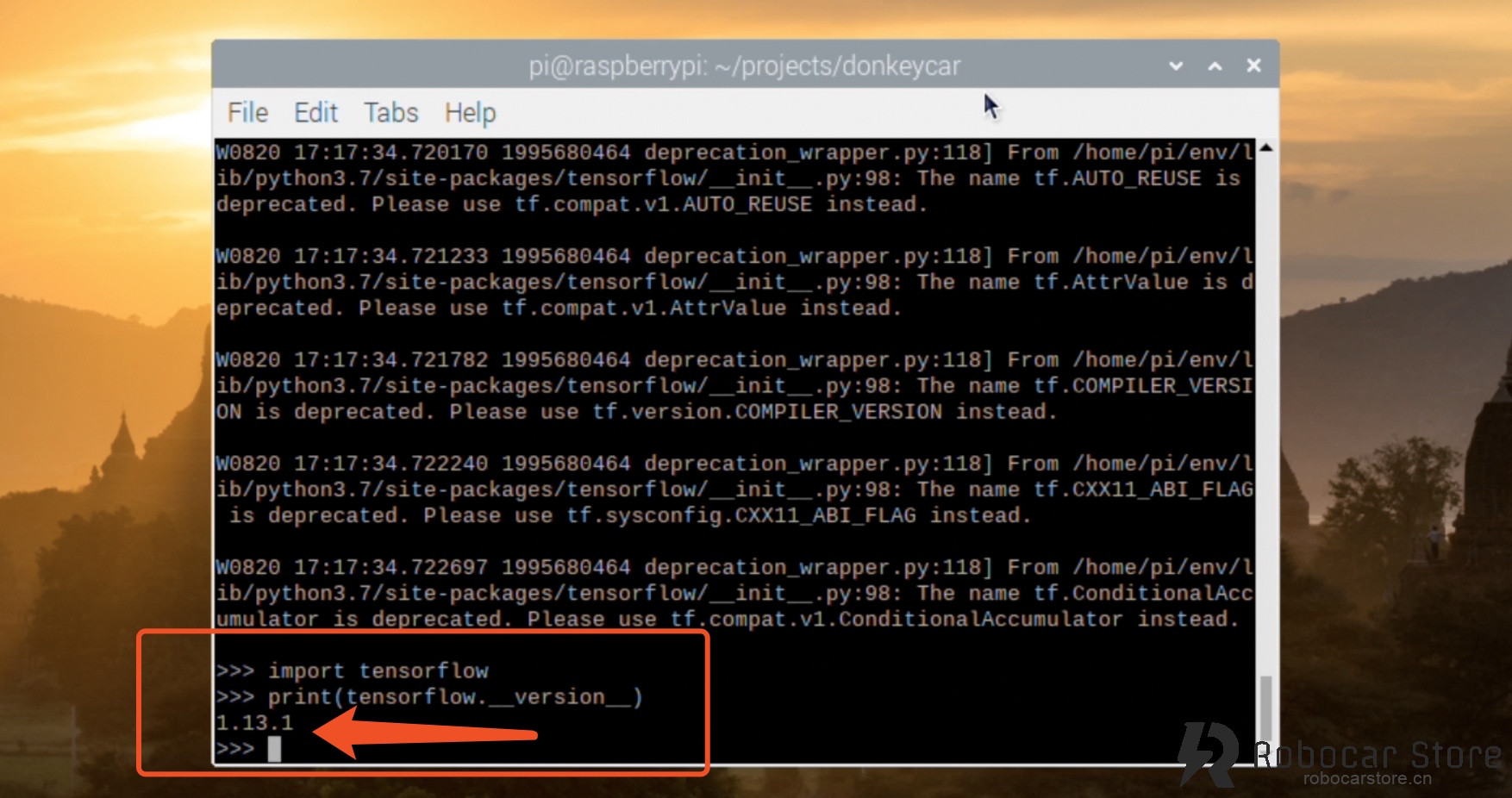
Enter the following command to enter the Python interactive programming mode:

Enter the following code to check:

print(tensorflow.__version__)
robocarstore/173807637225182120

When you see the version 1.13.1, it proves that you have successfully installed Tensorflow.

Note: Python will have some prompts when loading tensorflow for the first time, please don't worry, this is not an error prompt.

7,Install Python's OpenCV (optional)

Install OpenCV

This is also not required to be installed, if you don't use the OpenCV feature.

But if you still want to install it, please enter the following command:

pip install opencv-python

Verify Whether OpenCV Installation Success

Enter the following code to enter the Python interactive programming mode:

python import cv2 print(cv2.__version__)

Donkey Car详解(2) – 树莓派 安装

Donkey Car详解(2) – 树莓派 安装

robocarstore/173807615525023113

现在官方已经没有提供懒人版的Donkey Car 了,所以这次就分享一下,小编在树莓派(Raspberry Pi 3 B+)安装Donkey Car 的过程。

本文参考: http://docs.donkeycar.com/guide/robot_sbc/setup_raspberry_pi/


环境

官方推荐使用Raspian Lite(Stretch) (352MB)。但我使用的是带桌面的版本,如下

树莓派OS:
– Raspbian Buster with desktop
Version:July 2019
Release date:2019-07-10
Kernel version:4.19

下载地址:

https://www.raspberrypi.org/downloads/raspbian/

怎么刷写安装树莓派,联网,这里就不多说了。

假设你已经安装好树莓派系统,并且能联网,可以选择连接显示器,直接操作(本示例的操作模式),也可以远程SSH操作。你喜欢就好。

打开命令行,我们开始吧!

donkeycar-rpi


开始安装

1,在安装前更新你的系统

要更新你的系统,输入以下命令:

更新系统需要花费很大时间,而且可能需要重复多次才能更新完成。请耐心操作。

2,配置树莓派开启摄像头,I2C,扩展文件系统

要打开树莓派的配置对话框,在命令行输入:

① 开启I2C

05 Interfacing Options -> P5 I2C ->「Yes」

rpi_i2c

② 开启摄像头:

05 Interfacing Options -> P1 Camera -> 「Yes」

robocarstore/173807630025267416

③ 扩展文件系统

7 Advanced Options -> A1 Exapand Filesystem

robocarstore/173807631425048117

设置好,之后退出配置对话框,会提示是否现在重启,选择「Yes」重启系统。

robocarstore/173807632825076218

3,安装Donkey Car 需要的依赖项

在命令行中输入以下命令:

sudo apt-get install -y build-essential python3 python3-dev python3-pip python3-virtualenv python3-numpy python3-picamera python3-pandas python3-rpi.gpio i2c-tools avahi-utils joystick libopenjp2-7-dev libtiff5-dev gfortran libatlas-base-dev libopenblas-dev libhdf5-serial-dev git

经过漫长的等待终将安装完成,如果爆错误,请重新运行一遍。

(如果还是解决不了问题,请在留言区分享你所遇到的问题,请贴出你的系统版本,尽可能多的信息,我们才有可能帮助到你。)

4,安装OpenCV的依赖项(可选)

这一步骤可选,如果你没有用到OpenCV的功能可以不安装。

但如果还是想安装的话,在命令行输入以下命令:

sudo apt-get install libilmbase-dev libopenexr-dev libgstreamer1.0-dev libjasper-dev libwebp-dev libatlas-base-dev libavcodec-dev libavformat-dev libswscale-dev libqtgui4 libqt4-test

5,安装虚拟环境

在命令行输入:

python3 -m virtualenv -p python3 env --system-site-packages

echo "source env/bin/activate" >> ~/.bashrc

运行完以上命令,命令行会多了个(env)前缀,表示我们在一个叫作env的虚拟环境下,进行操作。如下图:

robocarstore/173807634625230519

虚拟环境的作用是,避免树莓派运行多个项目的时候,不会因为更新了某个依赖项或者自动清除了某个依赖项,在其他项目中出现了不可预测的错误。

现在,每次开机都会自动进入env的虚拟环境,如果想退出,命令行输入:deactivate ,即可。

6,安装Donkey Car 的 Python 代码

创建目录,并进入该目录

在用户目录下,新建一个名为projects 的文件夹(目录),并进入该文件夹,输入命令如下:

注意:直接进入用户目录,只需要在命令行输入: cd ,回车即可。

从GitHub上克隆整个Donkey car项目

输入以下命令:

git clone https://github.com/autorope/donkeycar

接着,又开始漫长的等待,因为github在国内的速度不是一般的快,请耐心等待,如果一次不行,则再运行一次。

提示:如果对命令行指令比较熟悉的,可使用scp指令,通过一些软件项目打包下载后上传到树莓派的当前目录。具体用法请自行搜索。

当git clone(克隆) 完成,我们使用使用以下命令操作:

pip install tensorflow==1.13.1

提示:
– 当运行 pip install -e .[pi] 安装,出现错误时,可尝试再执行一次。
– 当运行 pip install tensorflow==1.13.1 ,可能会提示下载的文件的检验哈希码不正确,导致没有办法下载,可根据错误提示的下载地址,手动使用 wget 命令下载,下载完成后,使用 pip install 「下载的文件名称」,进行安装。

验证Tensorflow安装是否成功

命令行输入python进入Python的交互编程模式:

输入以下代码检查:

print(tensorflow.__version__)

robocarstore/173807637225182120

当看到1.13.1的版本好,证明你已经安装Tensorflow成功

注意:python第一次加载tensorflow会有一些提示,请不用担心,这不是错误提示。

7,安装Python的OpenCV(可选)

安装OpenCV

这个也是非必须安装的,如果你没有用到OpenCV的功能。

但如果你还是想安装,请输入以下命令:

pip install opencv-python

验证是否安装OpenCV成功

同样进入python的交互编程模式,输入以下代码:

import cv2
print(cv2.__version__)

Donkey Car Detailed Explanation (2) – Raspberry Pi Installation

Donkey Car Detailed Explanation (2) – Raspberry Pi Installation

robocarstore/173807615525023113

Now the official Donkey Car is no longer provided with a lazy person's version, so this time we will share the process of installing Donkey Car on a Raspberry Pi (Raspberry Pi 3 B+).

Reference: http://docs.donkeycar.com/guide/robot_sbc/setup_raspberry_pi/


Environment

The official recommendation is to use Raspian Lite(Stretch) (352MB). However, I used the desktop version, as follows:

Raspberry Pi OS:
– Raspbian Buster with desktop
Version:July 2019
Release date:2019-07-10
Kernel version:4.19

Download Url:

https://www.raspberrypi.org/downloads/raspbian/

How to flash install Raspberry Pi, here is no more.

Assume you have already installed the Raspberry Pi system and can connect to the network, you can choose to connect to the display directly (this example's operation mode), or remotely SSH. You like it.

Open the command line, let's start!

donkeycar-rpi


Start Installation

1,Update your system before installation

To update your system, enter the following command:

Updating the system takes a long time and may need to be repeated multiple times to complete. Please be patient.

2,Configure Raspberry Pi to enable camera, I2C, expand file system

To open the Raspberry Pi configuration dialog, enter the following command in the command line:

① Enable I2C

05 Interfacing Options -> P5 I2C ->「Yes」

rpi_i2c

② Enable Camera:

05 Interfacing Options -> P1 Camera -> 「Yes」

robocarstore/173807630025267416

③ Expand File System

7 Advanced Options -> A1 Exapand Filesystem

robocarstore/173807631425048117

Set it up, then exit the configuration dialog, it will prompt whether to restart now, select 「Yes」 to restart the system.

robocarstore/173807632825076218

3,Install the dependencies required for Donkey Car

Enter the following command in the command line:

sudo apt-get install -y build-essential python3 python3-dev python3-pip python3-virtualenv python3-numpy python3-picamera python3-pandas python3-rpi.gpio i2c-tools avahi-utils joystick libopenjp2-7-dev libtiff5-dev gfortran libatlas-base-dev libopenblas-dev libhdf5-serial-dev git

After a long wait, it will be installed, if an error occurs, please run it again.

(If the problem is still not resolved, please share the problem you encountered in the comments section, and post your system version, as much information as possible, so we can help you.)

4,Install OpenCV dependencies (optional)

This step is optional, you can skip it if you don't use the OpenCV feature.

If you still want to install it, enter the following command in the command line:

sudo apt-get install libilmbase-dev libopenexr-dev libgstreamer1.0-dev libjasper-dev libwebp-dev libatlas-base-dev libavcodec-dev libavformat-dev libswscale-dev libqtgui4 libqt4-test

5,Install Virtual Environment

Enter the following command in the command line:

python3 -m virtualenv -p python3 env --system-site-packages

echo "source env/bin/activate" >> ~/.bashrc

After running the above commands, the command line will have a (env) prefix, indicating that we are operating in an environment called env.

robocarstore/173807634625230519

The purpose of the virtual environment is to avoid errors in other projects when updating a dependency or automatically clearing a dependency on the Raspberry Pi running multiple projects.

Now, every time the Raspberry Pi starts, it will automatically enter the env virtual environment. If you want to exit, enter the command line: deactivate .

6,Install Donkey Car's Python Code

Create Directory, and Enter the Directory

In the user directory, create a folder named projects (directory), and enter the folder, enter the following command:

Note: Directly enter the user directory, just enter the command line: cd , press Enter.

Clone the entire Donkey car project from GitHub

Enter the following command:

git clone https://github.com/autorope/donkeycar

Then, start a long wait, because the speed of github in China is not fast, please be patient, if it doesn't work, run it again.

Note: If you are familiar with command line instructions, you can use the scp command to download some software projects after packaging, and upload them to the current directory of the Raspberry Pi. For specific usage, please search for it yourself.

When git clone (clone) is complete, we use the following command to operate:

pip install tensorflow==1.13.1

Note:
– When running pip install -e .[pi] installation, if an error occurs, you can try to run it again.
– When running pip install tensorflow==1.13.1 , it may prompt that the downloaded file's hash code is incorrect, causing it to be unable to download. You can manually use the wget command to download it according to the error prompt, download it, and then use pip install 「downloaded file name」 to install it.

Verify Tensorflow Installation Success

Enter the following command to enter the Python interactive programming mode:

Enter the following code to check:

print(tensorflow.__version__)

robocarstore/173807637225182120

When you see the version 1.13.1, it proves that you have successfully installed Tensorflow.

Note: Python will have some prompts when loading tensorflow for the first time, please don't worry, this is not an error prompt.

7,Install Python's OpenCV (optional)

Install OpenCV

This is also not required to be installed, if you don't use the OpenCV feature.

But if you still want to install it, please enter the following command:

pip install opencv-python

Verify Whether OpenCV Installation Success

Enter the following code to enter the Python interactive programming mode:

python import cv2 print(cv2.__version__)

Donkey Car Detailed Explanation (2) – Raspberry Pi Installation

Donkey Car Detailed Explanation (2) – Raspberry Pi Installation

robocarstore/173807615525023113

Now the official Donkey Car is no longer provided with a lazy person's version, so this time we will share the process of installing Donkey Car on a Raspberry Pi (Raspberry Pi 3 B+).

Reference: http://docs.donkeycar.com/guide/robot_sbc/setup_raspberry_pi/


Environment

The official recommendation is to use Raspian Lite(Stretch) (352MB). However, I used the desktop version, as follows:

Raspberry Pi OS:
– Raspbian Buster with desktop
Version:July 2019
Release date:2019-07-10
Kernel version:4.19

Download Url:

https://www.raspberrypi.org/downloads/raspbian/

How to flash install Raspberry Pi, here is no more.

Assume you have already installed the Raspberry Pi system and can connect to the network, you can choose to connect to the display directly (this example's operation mode), or remotely SSH. You like it.

Open the command line, let's start!

donkeycar-rpi


Start Installation

1,Update your system before installation

To update your system, enter the following command:

Updating the system takes a long time and may need to be repeated multiple times to complete. Please be patient.

2,Configure Raspberry Pi to enable camera, I2C, expand file system

To open the Raspberry Pi configuration dialog, enter the following command in the command line:

① Enable I2C

05 Interfacing Options -> P5 I2C ->「Yes」

rpi_i2c

② Enable Camera:

05 Interfacing Options -> P1 Camera -> 「Yes」

robocarstore/173807630025267416

③ Expand File System

7 Advanced Options -> A1 Exapand Filesystem

robocarstore/173807631425048117

Set it up, then exit the configuration dialog, it will prompt whether to restart now, select 「Yes」 to restart the system.

robocarstore/173807632825076218

3,Install the dependencies required for Donkey Car

Enter the following command in the command line:

sudo apt-get install -y build-essential python3 python3-dev python3-pip python3-virtualenv python3-numpy python3-picamera python3-pandas python3-rpi.gpio i2c-tools avahi-utils joystick libopenjp2-7-dev libtiff5-dev gfortran libatlas-base-dev libopenblas-dev libhdf5-serial-dev git

After a long wait, it will be installed, if an error occurs, please run it again.

(If the problem is still not resolved, please share the problem you encountered in the comments section, and post your system version, as much information as possible, so we can help you.)

4,Install OpenCV dependencies (optional)

This step is optional, you can skip it if you don't use the OpenCV feature.

If you still want to install it, enter the following command in the command line:

sudo apt-get install libilmbase-dev libopenexr-dev libgstreamer1.0-dev libjasper-dev libwebp-dev libatlas-base-dev libavcodec-dev libavformat-dev libswscale-dev libqtgui4 libqt4-test

5,Install Virtual Environment

Enter the following command in the command line:

python3 -m virtualenv -p python3 env --system-site-packages

echo "source env/bin/activate" >> ~/.bashrc

After running the above commands, the command line will have a (env) prefix, indicating that we are operating in an environment called env.

robocarstore/173807634625230519

The purpose of the virtual environment is to avoid errors in other projects when updating a dependency or automatically clearing a dependency on the Raspberry Pi running multiple projects.

Now, every time the Raspberry Pi starts, it will automatically enter the env virtual environment. If you want to exit, enter the command line: deactivate .

6,Install Donkey Car's Python Code

Create Directory, and Enter the Directory

In the user directory, create a folder named projects (directory), and enter the folder, enter the following command:

Note: Directly enter the user directory, just enter the command line: cd , press Enter.

Clone the entire Donkey car project from GitHub

Enter the following command:

git clone https://github.com/autorope/donkeycar

Then, start a long wait, because the speed of github in China is not fast, please be patient, if it doesn't work, run it again.

Note: If you are familiar with command line instructions, you can use the scp command to download some software projects after packaging, and upload them to the current directory of the Raspberry Pi. For specific usage, please search for it yourself.

When git clone (clone) is complete, we use the following command to operate:

pip install tensorflow==1.13.1

Note:
– When running pip install -e .[pi] installation, if an error occurs, you can try to run it again.
– When running pip install tensorflow==1.13.1 , it may prompt that the downloaded file's hash code is incorrect, causing it to be unable to download. You can manually use the wget command to download it according to the error prompt, download it, and then use pip install 「downloaded file name」 to install it.

Verify Tensorflow Installation Success

Enter the following command to enter the Python interactive programming mode:

Enter the following code to check:

print(tensorflow.__version__)

robocarstore/173807637225182120

When you see the version 1.13.1, it proves that you have successfully installed Tensorflow.

Note: Python will have some prompts when loading tensorflow for the first time, please don't worry, this is not an error prompt.

7,Install Python's OpenCV (optional)

Install OpenCV

This is also not required to be installed, if you don't use the OpenCV feature.

But if you still want to install it, please enter the following command:

pip install opencv-python

Verify Whether OpenCV Installation Success

Enter the following code to enter the Python interactive programming mode:

python import cv2 print(cv2.__version__)

Donkey Car详解(2) – 树莓派 安装

Donkey Car详解(2) – 树莓派 安装

robocarstore/173807615525023113

现在官方已经没有提供懒人版的Donkey Car 了,所以这次就分享一下,小编在树莓派(Raspberry Pi 3 B+)安装Donkey Car 的过程。

本文参考: http://docs.donkeycar.com/guide/robot_sbc/setup_raspberry_pi/


环境

官方推荐使用Raspian Lite(Stretch) (352MB)。但我使用的是带桌面的版本,如下

树莓派OS:
– Raspbian Buster with desktop
Version:July 2019
Release date:2019-07-10
Kernel version:4.19

下载地址:

https://www.raspberrypi.org/downloads/raspbian/

怎么刷写安装树莓派,联网,这里就不多说了。

假设你已经安装好树莓派系统,并且能联网,可以选择连接显示器,直接操作(本示例的操作模式),也可以远程SSH操作。你喜欢就好。

打开命令行,我们开始吧!

donkeycar-rpi


开始安装

1,在安装前更新你的系统

要更新你的系统,输入以下命令:

更新系统需要花费很大时间,而且可能需要重复多次才能更新完成。请耐心操作。

2,配置树莓派开启摄像头,I2C,扩展文件系统

要打开树莓派的配置对话框,在命令行输入:

① 开启I2C

05 Interfacing Options -> P5 I2C ->「Yes」

rpi_i2c

② 开启摄像头:

05 Interfacing Options -> P1 Camera -> 「Yes」

robocarstore/173807630025267416

③ 扩展文件系统

7 Advanced Options -> A1 Exapand Filesystem

robocarstore/173807631425048117

设置好,之后退出配置对话框,会提示是否现在重启,选择「Yes」重启系统。

robocarstore/173807632825076218

3,安装Donkey Car 需要的依赖项

在命令行中输入以下命令:

sudo apt-get install -y build-essential python3 python3-dev python3-pip python3-virtualenv python3-numpy python3-picamera python3-pandas python3-rpi.gpio i2c-tools avahi-utils joystick libopenjp2-7-dev libtiff5-dev gfortran libatlas-base-dev libopenblas-dev libhdf5-serial-dev git

经过漫长的等待终将安装完成,如果爆错误,请重新运行一遍。

(如果还是解决不了问题,请在留言区分享你所遇到的问题,请贴出你的系统版本,尽可能多的信息,我们才有可能帮助到你。)

4,安装OpenCV的依赖项(可选)

这一步骤可选,如果你没有用到OpenCV的功能可以不安装。

但如果还是想安装的话,在命令行输入以下命令:

sudo apt-get install libilmbase-dev libopenexr-dev libgstreamer1.0-dev libjasper-dev libwebp-dev libatlas-base-dev libavcodec-dev libavformat-dev libswscale-dev libqtgui4 libqt4-test

5,安装虚拟环境

在命令行输入:

python3 -m virtualenv -p python3 env --system-site-packages

echo "source env/bin/activate" >> ~/.bashrc

运行完以上命令,命令行会多了个(env)前缀,表示我们在一个叫作env的虚拟环境下,进行操作。如下图:

robocarstore/173807634625230519

虚拟环境的作用是,避免树莓派运行多个项目的时候,不会因为更新了某个依赖项或者自动清除了某个依赖项,在其他项目中出现了不可预测的错误。

现在,每次开机都会自动进入env的虚拟环境,如果想退出,命令行输入:deactivate ,即可。

6,安装Donkey Car 的 Python 代码

创建目录,并进入该目录

在用户目录下,新建一个名为projects 的文件夹(目录),并进入该文件夹,输入命令如下:

注意:直接进入用户目录,只需要在命令行输入: cd ,回车即可。

从GitHub上克隆整个Donkey car项目

输入以下命令:

git clone https://github.com/autorope/donkeycar

接着,又开始漫长的等待,因为github在国内的速度不是一般的快,请耐心等待,如果一次不行,则再运行一次。

提示:如果对命令行指令比较熟悉的,可使用scp指令,通过一些软件项目打包下载后上传到树莓派的当前目录。具体用法请自行搜索。

当git clone(克隆) 完成,我们使用使用以下命令操作:

pip install tensorflow==1.13.1

提示:
– 当运行 pip install -e .[pi] 安装,出现错误时,可尝试再执行一次。
– 当运行 pip install tensorflow==1.13.1 ,可能会提示下载的文件的检验哈希码不正确,导致没有办法下载,可根据错误提示的下载地址,手动使用 wget 命令下载,下载完成后,使用 pip install 「下载的文件名称」,进行安装。

验证Tensorflow安装是否成功

命令行输入python进入Python的交互编程模式:

输入以下代码检查:

print(tensorflow.__version__)

robocarstore/173807637225182120

当看到1.13.1的版本好,证明你已经安装Tensorflow成功

注意:python第一次加载tensorflow会有一些提示,请不用担心,这不是错误提示。

7,安装Python的OpenCV(可选)

安装OpenCV

这个也是非必须安装的,如果你没有用到OpenCV的功能。

但如果你还是想安装,请输入以下命令:

pip install opencv-python

验证是否安装OpenCV成功

同样进入python的交互编程模式,输入以下代码:

import cv2
print(cv2.__version__)